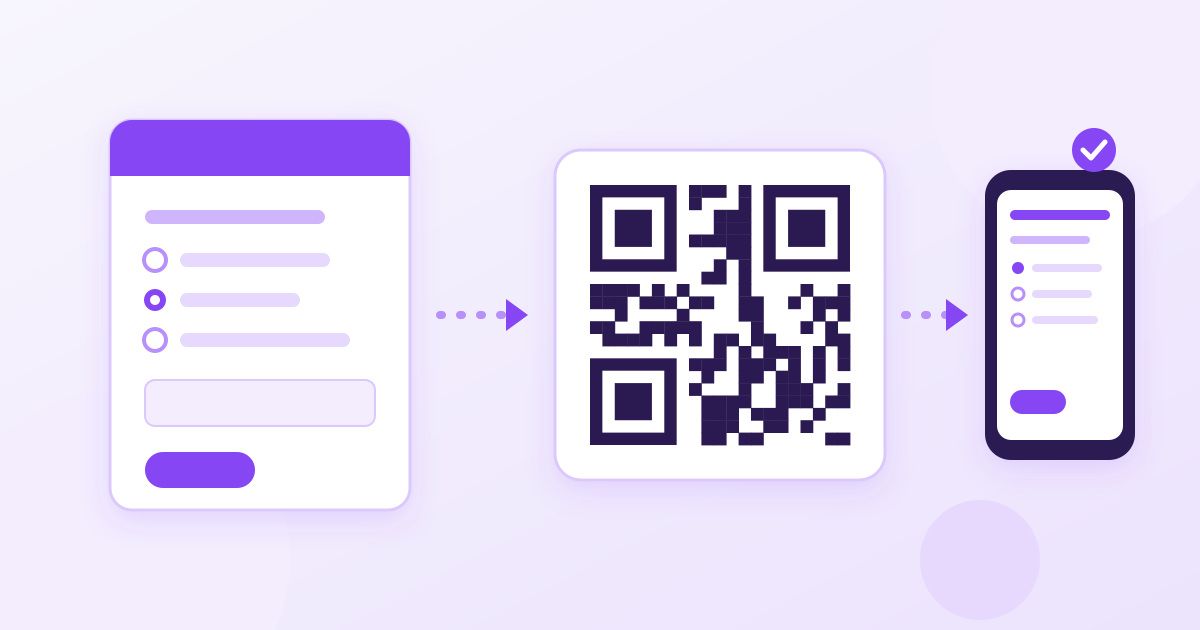
To make a QR code for a Google Form, open the form, click Send, choose the link tab, copy the form's link, and paste it into a free QR code generator. Download the code as an image and put it on your poster, slide or handout. Google Forms has no QR button of its own, so a separate generator is the normal way to do it, and a static code made this way does not expire.
That covers the basic job in under two minutes. The rest of this guide is about the details that decide whether people can actually fill in your form after they scan: the settings that silently block respondents, how big to print the code, and what happens to the code when you edit or close the form.
Step by step: Google Form to QR code
- Finish the form first. Questions can change later without breaking the code (more on that below), but make sure the form is set to accept responses before you print anything.
- Get the respondent link. In the form editor, click Send in the top right, then the link icon. You will see a long
docs.google.com/forms/...address. Tick Shorten URL to get a shortforms.glelink instead, then click Copy. - Do not copy the address bar. The URL in your browser while you are editing ends in
/edit. That is the editor link. Respondents who scan it will hit a "You need permission" page, or worse, if they have edit access, land inside your form's settings. - Generate the code. Open the QR Code Generator, paste the link into the URL field and let it build the code. It is free and needs no sign-up.
- Download and test. Save the image, then scan it with two different phones (one iPhone camera, one Android camera) before you print. The form should open straight to the first question.
Why use the short forms.gle link?
A QR code stores the characters you give it. A longer URL means more data, which means more, smaller squares packed into the same space. That denser pattern is harder for phone cameras to read from a distance, in dim light or when printed small.
The short link points to exactly the same form, so there is no downside to using it. If you ever need to print the code very small, for example on a name badge or the corner of a receipt, the shorter link makes a noticeable difference to how reliably it scans.
Settings that quietly stop people from responding
Most "my QR code doesn't work" complaints about Google Forms are not about the code at all. The code opens the form fine, but the form refuses the person scanning it. Check these under the form's Settings tab before printing.
| Setting | What respondents see | What to do |
|---|---|---|
| Restrict to users in your organisation (school or work accounts) | A sign-in wall or an access error on personal phones | Turn it off if the public, parents or guests need to respond |
| Limit to 1 response | A prompt to sign in to Google before they can answer | Fine for staff surveys; turn off for walk-up event sign-ups |
| Collect email addresses (verified) | A sign-in requirement | Use "responder input" instead if you just want an email field |
| Accepting responses switched off | "This form is no longer accepting responses" | Switch it back on in the Responses tab |
| File upload question | A sign-in requirement (uploads go to the respondent's Google Drive) | Remove it if you want anonymous, no-login answers |
The quickest test is to open the short link in a private or incognito window on your phone, where you are not signed in to Google. Whatever you see there is what a stranger will see after scanning.
Does the QR code break if you edit the form?
No. A static QR code is just the link written in a pattern of squares. Adding questions, rewording them, changing the theme or reordering sections all happen behind that same link, so the printed code keeps working.
What does change things:
- Deleting the form. The link stops working, so the code leads to an error page.
- Making a copy of the form. A copy gets a brand-new link. Your printed code still points to the original, so responses keep going there, not to the copy.
- Turning off responses. The code still opens the form, but people see the closed message. Useful at the end of an event, as long as you remember to switch it back on next time.
Static codes made with Toolyfied never expire on their own. If you have seen warnings about QR codes that "stop working after 14 days", those relate to dynamic codes tied to a paid subscription that redirect through someone else's server. A static code contains the destination directly, so there is nothing to expire.
How big should you print it?
A practical rule is that the code should be at least about one tenth of the distance people will scan it from. Someone standing a metre from a poster needs a code around 10 cm wide. For a handout or a table tent read at arm's length, 2.5 to 3 cm is usually the smallest comfortable size.
- Keep a white margin around the code, roughly the width of four of the small squares. Cropping it tight against a coloured background is a common cause of failed scans.
- Keep contrast high. Dark code on a light background scans most reliably. Light codes on dark backgrounds fail on some phone cameras.
- Do not stretch it. Resize the image proportionally. If you need a specific pixel size for a slide or a print layout, the Image Resizer lets you set exact width and height, and keeping both equal keeps the code square.
For more detail on print sizes and scanning distance, our guide to QR code size for printing goes deeper.
Where a Google Form QR code works well
- Event sign-in sheets. A code on the welcome table replaces a clipboard and pen, and the answers land in a spreadsheet you can export.
- Classroom exit tickets and quizzes. Put the code on the last slide so students can answer on their phones before they leave.
- Customer feedback. A small code on a receipt, menu or counter card leads to a three-question survey.
- Volunteer and RSVP forms. Print it on flyers or add it to an email as an image for people reading on a laptop who want to use their phone.
- Workshop evaluations. Show it on screen during the final minutes, while people are still in the room.
Adding the code to slides, flyers and PDFs
The downloaded code is an ordinary image, so you can drop it into Google Slides, PowerPoint, Canva or Word like any other picture. A few practical tips:
- On a projected slide, make the code large, at least a quarter of the slide height, because people at the back are scanning from several metres away.
- Add a short line of text next to it, such as "Scan to sign in", so people know what the code is for. QR codes with no context get ignored.
- If you are sending a flyer as a PDF, check the code is still sharp after exporting. Converting the flyer with the Image to PDF converter works well when your flyer is a single image.
- Print one test copy at the final size and scan it from a realistic distance before you print a hundred.
Can you track how many people scanned it?
Not from the code itself. A static QR code has no counter, because scanning it simply opens the link on the person's phone. What you can track is the outcome you actually care about: Google Forms counts responses in the Responses tab, and you can link the form to Google Sheets for a live list.
If you need separate numbers for different places, for example the code on the poster versus the code on the handout, make one copy of the form per location. Each copy has its own link, so you can generate a separate code for each and compare response counts.
Quick checklist before you print
- Link copied from Send → link, not the address bar.
- Form opens without sign-in in a private browser window.
- "Accepting responses" is switched on.
- Code scans on at least two different phones.
- Printed size suits the scanning distance, with a white margin around it.
- A short label tells people what scanning will do.
Frequently Asked Questions
Does Google Forms have a built-in QR code generator?
No. Google Forms gives you a share link but no QR code option. Copy the respondent link from Send → link and paste it into a free QR code generator, then download the image.
Will my QR code stop working if I edit the Google Form?
No. Editing questions, the theme or the order keeps the same link, so a static QR code keeps working. It only breaks if you delete the form, and a copy of the form gets a new link the old code will not point to.
Why does my Google Form QR code ask people to sign in?
The form's settings are usually the cause. Restricting responses to your organisation, limiting to one response, verified email collection or a file upload question all require a Google sign-in. Turn those off if anyone should be able to respond.
Do free QR codes for Google Forms expire?
Static QR codes contain the link itself, so they do not expire. Codes that stop working after a trial are dynamic codes that redirect through a paid service. A static code works as long as the form exists and accepts responses.
Can I see how many people scanned my Google Form QR code?
A static code cannot count scans. You can see the number of responses in the form's Responses tab, and you can make separate copies of the form for different locations if you want to compare where responses came from.
How big should I print a QR code for a Google Form?
Aim for a width of roughly one tenth of the scanning distance, so about 10 cm for a poster read from a metre away and at least 2.5 cm on a handout. Keep a white margin around the code and test a printed copy before printing in bulk.



