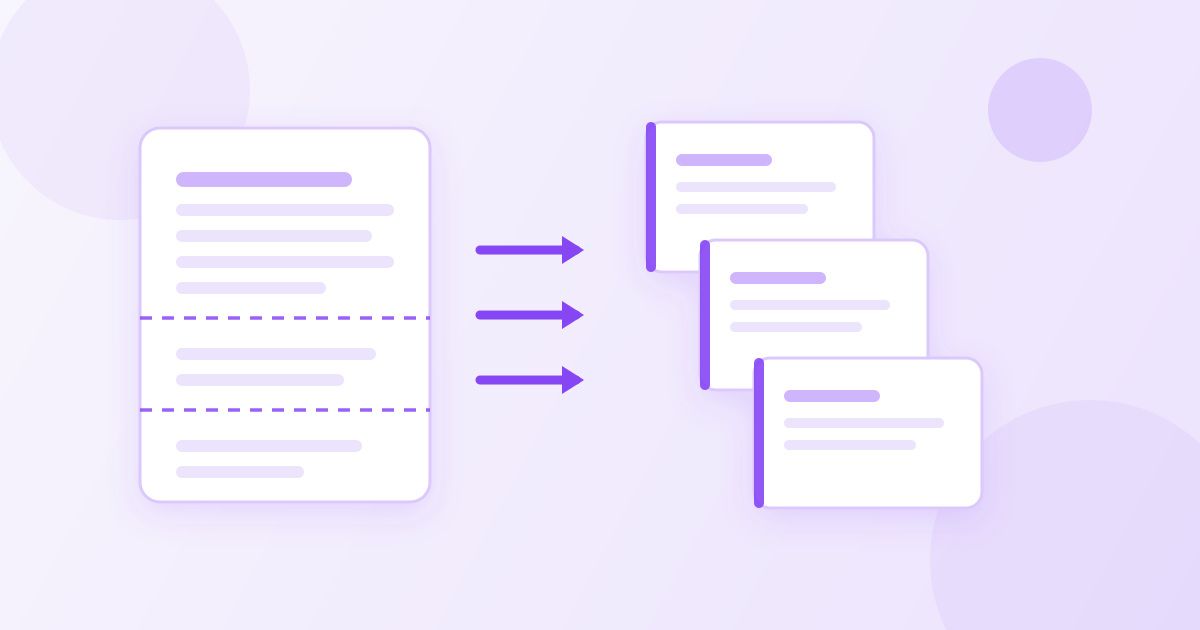
To split a PDF, open a browser tool like the PDF Splitter, upload your file, type the pages you want (for example 1-3, or 1-3,7), and download the new PDF. It is free, there is no watermark, and nothing needs to be installed. Repeat with a different range and you have your second file.
That last sentence is the part most guides skip. "Splitting a PDF" means two different things depending on who is asking. Sometimes you want one specific chunk out of a long document — pages 12 to 18 of a 90-page contract, to send to one person. Sometimes you want the document broken up into several files — a 40-page scan that is really four separate invoices. Both jobs are done with the same tool; the second one is just the first one repeated, once per range.
Split a PDF in three steps
- Open the PDF Splitter and drop your file onto the upload area.
- Enter the page range you want to keep. A single range looks like
4-9. Separate pages and ranges with commas:1-3,7,12-14pulls those pages into one new PDF, in that order. - Download the result. The original file on your computer is untouched — you get a new PDF alongside it.
To end up with several separate files, run it again with the next range and give each download a clear name as it arrives. It takes about fifteen seconds per file, and it is far less error-prone than any "auto-split" that has to guess where one document ends and the next begins.
Work out your page numbers first
The single most common mistake is using the page numbers printed on the page instead of the position in the file. A report with a cover, a blank page and two pages of front matter has its "page 1" at file position 5. The splitter counts file positions, and so does every other PDF tool.
Open the PDF in any viewer and look at the page counter in the toolbar — that is the number the splitter wants. If a document has been scanned with the pages in an odd order, it is worth checking before you split rather than after, because a range that is off by one produces a file that looks almost right and is quietly wrong.
Which tool for which job
Splitting is one of four jobs that people describe with the same words, and picking the wrong one costs a round trip.
| What you want | Use | Result |
|---|---|---|
| Keep pages 5-12 as their own document | PDF Splitter | A new PDF with just those pages |
| Get rid of a few bad pages, keep the rest | PDF Page Remover | The same document, minus those pages |
| Put several PDFs back together | PDF Merger | One combined file, reorderable |
| Turn pages into pictures for a post or slide | PDF to JPG | One JPG per page |
If you are removing three pages from a fifty-page file, the page remover is the shorter path. If you are keeping three pages out of fifty, the splitter is. They are the same operation viewed from opposite ends, and the one that needs less typing is the one that goes wrong less often.
When splitting is actually the right move
A few situations where it earns its keep:
- Sending one section to one person. Your accountant needs the four pages of receipts, not the whole 60-page expense pack. Sending less is faster to review and safer than sending the lot.
- Getting under an upload limit. Plenty of portals cap uploads at 5 or 10 MB. Splitting a heavy scan into halves often clears the bar on its own; if it does not, run each half through the PDF Compressor as well.
- Separating a batch scan. Ten documents fed through a scanner in one pass come out as one file. Splitting per document turns an unsearchable pile into ten things you can actually file.
- Trimming what you keep. A 200-page manual where you only ever use the troubleshooting chapter is easier to live with as a 12-page PDF on your phone.
- Removing pages you should not forward. A signature page, a salary line, an internal comments appendix — splitting keeps the part that belongs to the recipient and leaves the rest behind.
What splitting does and does not change
The extracted pages are the same pages, not re-rendered pictures of them. Text stays selectable and searchable, links inside the kept range still work, and image quality is unchanged. Nothing is being re-compressed, so you are not losing anything on the way out.
Two things do not survive, and both surprise people:
- Links that pointed at pages you left behind. A table of contents entry for page 40 has nowhere to go in a file that stops at page 12.
- Bookmarks and page numbering. Your extract starts at page 1 even if it began life as page 47, while the numbers printed on the pages still say 47. For anything that will be referenced out loud, say which numbering you mean.
File size falls roughly in proportion to how much you kept, though not exactly — fonts and other shared resources are carried along by whichever pages still need them.
A note on password-protected and scanned PDFs
If a PDF asks for a password before it will open, no online tool can split it until it is unlocked; open it with the password first and save an unlocked copy. If you want to protect the pieces afterwards, the Protect PDF tool adds a password to each new file.
Scanned PDFs split perfectly well, because a scan is just images wrapped in a PDF. What they cannot do is tell you where one document ends — that is a judgement only you can make, so keep the scan open in a viewer beside the splitter and read the page numbers off as you go.
On your files
The splitter processes uploads on Toolyfied's server rather than entirely inside your browser. The file is used only to produce your download, and old files are cleared from the server automatically every day. No account, no email address, no watermark on the result. For genuinely sensitive material — anything you would not email — a desktop application that never uploads at all is the more careful choice, and that is true of every free web tool, not just this one.
Splitting on a phone or tablet
Nothing about this needs a computer. The splitter is a web page, so it works the same in Safari on an iPhone or Chrome on Android: tap the upload area, pick the PDF from Files or Drive, type the range, tap download. The finished file lands in your Downloads folder or the Files app, ready to attach to a reply.
The one thing worth doing differently on a small screen is checking your page numbers before you start. Scrolling a long PDF on a phone to confirm that the receipts really do run from page 3 to page 6 is slow and easy to get wrong. If the document came by email, glance at it on a bigger screen first, note the ranges, then do the actual splitting wherever you happen to be.
Doing it in bulk
If you are splitting the same document shape every week — a monthly statement pack, a batch of scanned forms — write your ranges down once and reuse the list. Ten minutes of noting "invoices are always pages 1-2, receipts 3-6, summary 7" turns a fiddly job into copying three strings. It is a small habit and it removes most of the mistakes, because the errors in this job come from re-deriving the ranges each time, not from the tool.
Frequently Asked Questions
How do I split a PDF into separate files for free?
Upload the PDF to a browser tool such as Toolyfied's PDF Splitter, type the page range you want to keep (for example 1-3), and download the new PDF. To create several files, repeat with each range in turn. It is free, needs no account and adds no watermark.
Can I extract more than one range at a time?
You can put several pages and ranges in one entry, like 1-3,7,12-14, and they all go into a single new PDF in that order. If you want them as separate documents instead, run the tool once per range.
Which page numbers should I use — the printed ones or the file ones?
Use the position in the file, which is what your PDF viewer's toolbar counter shows. Covers and blank pages mean the number printed on a page is often several ahead of its real position, and that off-by-a-few mistake is the most common way a split goes wrong.
Does splitting a PDF reduce the quality?
No. The pages are carried across as they are rather than re-rendered, so text stays selectable and searchable and images are untouched. File size drops roughly in line with how many pages you kept.
Can I split a password-protected PDF?
Not while it is locked. Open it with the password first and save an unlocked copy, then split that. If you want the resulting pieces protected, add a password back afterwards with a protect-PDF tool.
What is the difference between splitting a PDF and deleting pages?
They reach the same place from opposite directions. Splitting keeps the pages you name and drops the rest; deleting removes the pages you name and keeps the rest. Use whichever one means typing fewer page numbers for your document.



