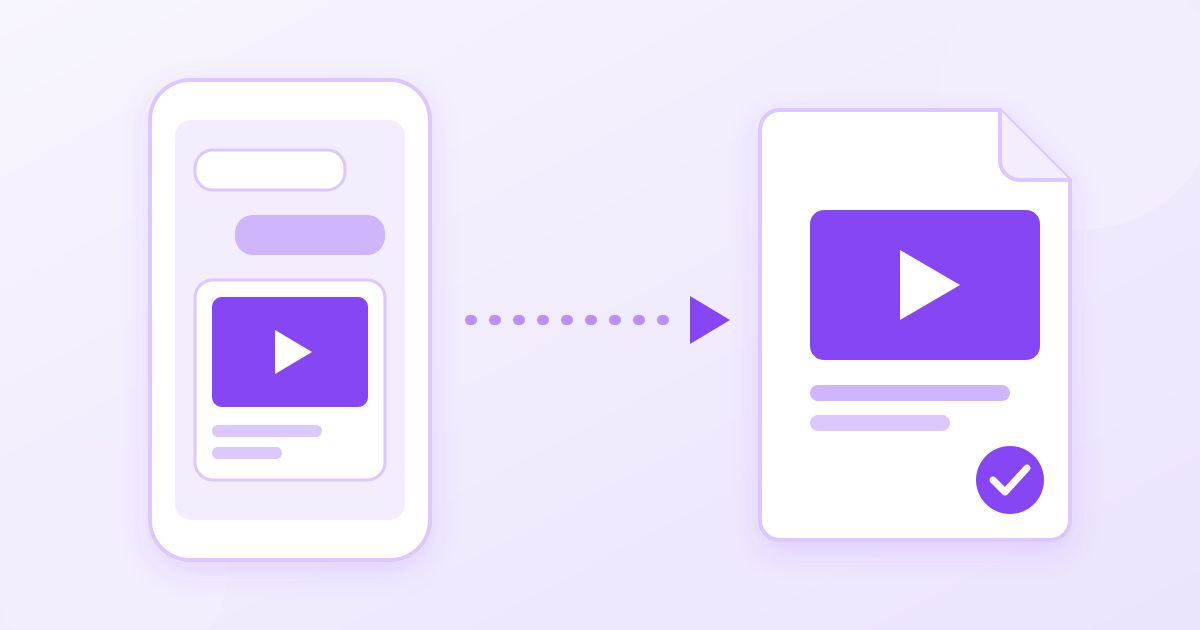
To send a long video on WhatsApp without it turning soft and blocky, send it as a document rather than from the gallery: WhatsApp then delivers the original file untouched, up to its 2 GB limit. If the file is bigger than that, or too heavy for the person on the other end to download on mobile data, shrink it yourself first with a proper compressor, or cut it down to the part that matters.
That is the whole answer in two sentences. The rest of this guide explains why WhatsApp's own compression looks so bad, when to use each method, and how to get a clip that is small enough to send but still sharp enough to watch.
Why WhatsApp makes your videos look worse
When you attach a video from the photo gallery, WhatsApp re-encodes it before sending. It lowers the resolution, drops the bitrate hard and keeps the file small so it travels quickly over mobile networks. Phones record at high bitrates, so a crisp 4K or 1080p clip can arrive looking like it was filmed through a steamed-up window, especially in scenes with lots of movement, low light or fine detail like grass and water.
WhatsApp added an HD toggle for photos and videos, which helps, but it is still a compressed version of your file, not the original. The only way inside the app to send the exact file you recorded is the document route.
WhatsApp has changed its limits several times over the years, so if a number below looks different in your app, trust the app. At the time of writing, files sent as documents can be up to 2 GB.
Four ways to send a long video, compared
| Method | Quality the recipient gets | Size limit | Best for |
|---|---|---|---|
| Gallery (normal send) | Heavily compressed | Handled by WhatsApp | Quick, throwaway clips |
| Gallery with HD on | Better, still re-encoded | Handled by WhatsApp | Short clips where speed matters |
| Send as Document | The original file, untouched | Up to 2 GB | Anything you want to keep sharp |
| Compress first, then send as Document | Close to the original, chosen by you | Whatever you shrink it to | Big files, or recipients on mobile data |
Method 1: Send the video as a document
This is the route most people miss, and it costs nothing.
- Open the chat and tap the attachment icon (the paperclip on Android, the + on iPhone).
- Choose Document, not Gallery or Photos & Videos.
- Browse to the video. On iPhone, you may need to choose it through the Files app or the "Choose Photo or Video" option inside the document picker.
- Send it. The recipient sees a file with a name and size instead of a playable thumbnail, and taps it to download and open it.
The trade-off: the recipient downloads the full file. A ten-minute 4K clip from a modern phone can easily run to well over a gigabyte, which is a lot to ask of someone on a capped data plan, and a slow download on a weak connection. That is where compressing first comes in.
Method 2: Compress it yourself, then send it as a document
Compressing the file yourself gives you control over the trade-off WhatsApp otherwise makes for you. A good compressor reduces the bitrate carefully and keeps the resolution sensible, so a clip can drop to a fraction of its size while still looking clean on a phone screen.
- Open Toolyfied's free video compressor in your phone or computer browser.
- Upload the clip (MP4 or MOV, which covers iPhone and Android recordings).
- Let it compress, then download the smaller file. There is no watermark and no sign-up.
- In WhatsApp, send that new file using Document, so WhatsApp does not compress it a second time.
A note on privacy: the compressor works on Toolyfied's server, so the video is uploaded to be processed. Files are used only to produce your result, and old files are cleaned off the server automatically every day. If the footage is sensitive, keep that in mind, or use the document method with the original file.
If the original came from an iPhone and is a .MOV, some Android phones and older Windows PCs will refuse to play it. Converting it with the MOV to MP4 converter re-encodes it to H.264 MP4, which plays almost everywhere, with no visible quality loss at default settings.
Method 3: Cut the video down to what matters
Often the easiest way to make a long video sendable is to make it shorter. If you recorded twenty minutes of a school concert and your sister only needs your nephew's three-minute solo, there is no point compressing the whole thing.
The video trimmer cuts a clip by start and end time. A plain trim is lossless: it copies the video and sound streams without re-encoding, so the part you keep looks exactly like the original. The start point may shift back by up to about a second to the nearest keyframe, which is normal for lossless cutting. The trimmer accepts files up to 50 MB, so for a large recording, compress it first and then trim, or trim on your phone's built-in editor and compress the result.
WhatsApp's own editor also lets you trim before sending, but the result is then compressed by the gallery route. Trimming outside the app and sending the trimmed file as a document keeps the quality.
Method 4: Share a link instead of the file
For very long recordings, such as a full wedding video or a lecture, a cloud link is often more practical than any attachment. Upload to the cloud storage you already use, set the link so anyone with it can view, and paste the link into the chat. The recipient can stream it without downloading the whole thing, and nothing gets compressed along the way. The downside is that the video then lives in your cloud account until you delete it.
Sending just the sound
Sometimes the person only needs the audio: a speech, a voice message recorded as video, a song from a rehearsal. In that case, pull the audio out with the MP4 to MP3 converter and send the MP3. An audio file is a tiny fraction of the size of the video, so it sends instantly and downloads in seconds even on a poor connection.
Which method should you use?
- The clip is under a minute and casual: just send it from the gallery with HD switched on.
- Quality matters and the recipient is on Wi-Fi: send the original as a document.
- Quality matters but the file is huge, or the recipient is on mobile data: compress first, then send as a document.
- Only part of it matters: trim first.
- It is longer than about half an hour or bigger than 2 GB: share a cloud link.
Common problems and quick fixes
"The file is too large." The video is over WhatsApp's document limit. Compress it, trim it, or use a link.
The recipient can't play it. It is probably a MOV or an HEVC (H.265) file on a device without support for it. Convert it to MP4 and resend.
It is stuck on "uploading". Large documents take time on a slow upload connection. Move to Wi-Fi, keep WhatsApp open, and avoid letting the phone sleep until the upload finishes.
It looks fine on your phone but blurry on theirs. You probably sent it from the gallery. Resend it as a document.
Frequently Asked Questions
How do I send a video on WhatsApp without losing quality?
Attach it as a Document instead of from the gallery. WhatsApp then sends the original file without re-encoding it, so the recipient gets exactly what you recorded, up to the 2 GB document limit.
What is the maximum video size on WhatsApp?
At the time of writing, files sent as documents can be up to 2 GB. Videos sent from the gallery are compressed by WhatsApp before sending. WhatsApp has changed its limits before, so the app itself is the final word.
Does the HD option on WhatsApp send the original video?
No. HD sends a higher-quality version than the default, but it is still re-encoded by WhatsApp. Only the Document option sends the untouched original file.
How can I make a video smaller to send on WhatsApp?
Run it through a video compressor such as Toolyfied's free one, which lowers the file size while keeping it watchable, then send the smaller file as a document. Trimming the clip to the part you need also shrinks it.
Why can't the other person open the video I sent as a document?
The most common cause is format: iPhone videos are often MOV files encoded in HEVC, which some Android phones and older PCs cannot play. Converting the clip to H.264 MP4 and resending usually fixes it.
Can I send a video longer than 2 GB on WhatsApp?
Not as a single file. Compress or trim it to bring it under the limit, or upload it to cloud storage and share the link in the chat instead.



