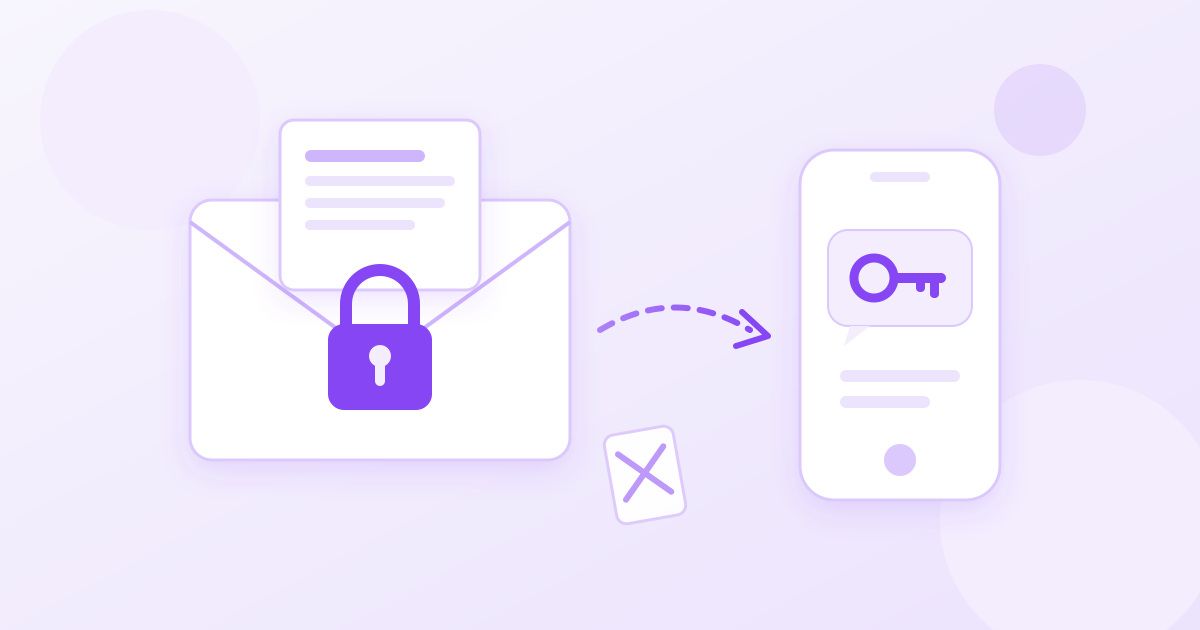
To send a confidential PDF by email, cut it down to only the pages the recipient needs, password-protect it with AES-256 encryption, attach the locked file, and send the password through a different channel, such as a text message or a phone call. Email alone was never built to keep a document private; a locked file plus a separately shared password closes most of the gap.
This guide walks through that routine step by step: what to remove before you send, how to lock the file, how to share the password without undoing all your work, and where password protection stops helping. It is written for everyday senders: someone emailing a payslip to a landlord, a passport scan to a travel agent, or a signed contract to an accountant.
This is general information, not security or legal advice. If your employer or industry has its own rules for handling personal or financial data, those rules come first.
Why a normal email attachment is not private
When you attach a PDF and press send, a copy of that file lands in several places you do not control: your Sent folder, the recipient's inbox, any device where either of you reads mail, and often a backup or archive. If any one of those accounts is ever accessed by someone else, the attachment is readable in seconds. Forwarding makes it worse, because each forward creates another copy.
Most email providers do encrypt messages while they travel between servers, but that protects the message in transit, not the file once it is sitting in a mailbox. Locking the PDF itself means the file stays protected wherever it ends up.
Step 1: Send only the pages that are needed
The safest page is the one you never send. Bank statements, tax returns and HR packs often run to a dozen pages when the recipient only asked for one. Before you lock anything, trim the document:
- If you need a specific range, such as pages 1 to 3 of a 20-page statement, use the PDF Splitter to extract just that range into a new file.
- If you need almost everything except a few pages (a page with full account numbers, or an unrelated appendix), the PDF Page Remover deletes the pages you pick. It works in your browser, so the file is not uploaded for that step.
Deleting a page is different from hiding information on a page. Drawing a black box over a number in a PDF editor often leaves the original text underneath, still selectable. If a page contains something sensitive you cannot remove as a whole page, ask whether the recipient truly needs that page, or produce a fresh document from the source without the detail.
Step 2: Keep the file small enough to attach
Scanned documents get heavy quickly, and many providers cap attachments at around 20 to 25 MB. If your trimmed PDF is still large, run it through the PDF Compressor before you add a password. Compress first, then protect: an encrypted PDF is harder for other tools to process, so locking should always be the last change you make to the file.
Step 3: Password-protect the PDF
Open the Protect PDF tool, upload your trimmed file, enter a password and download the locked copy. The tool applies AES-256 encryption, which means the contents cannot be opened without the password. It is free, needs no account and adds no watermark. The upload is processed on Toolyfied's server only to produce the locked file, and old files are cleaned from the server automatically every day.
Before you send it, open the downloaded file yourself. You should be asked for the password; if the PDF opens straight away, you have the original rather than the protected copy.
Choose a password that is actually hard to guess
Encryption is only as strong as the password on it. A PDF locked with the recipient's date of birth or "Invoice2026" can be cracked by anyone who knows a little about them or who runs a guessing program. Use a long random password instead: the Password Generator creates one in your browser, up to 20 characters with letters, numbers and symbols, and it never sends that password to a server. Turn on the option to exclude similar characters (such as l, 1 and I) if the recipient will be typing it from a text message.
Step 4: Send the password through a different channel
This is the step most people skip, and it decides whether the rest was worth doing. If the password is in the same email as the attachment, or in a follow-up email to the same inbox, anyone who gets into that mailbox gets both. Split them:
| Way to share the password | How safe | Good for |
|---|---|---|
| In the same email as the PDF | Defeats the purpose | Never |
| A second email to the same address | Weak: same mailbox holds both | Avoid |
| Text message or messaging app | Good: a separate account and device | Most everyday documents |
| Phone call, read out loud | Good: nothing written down | Short passwords, one-off sends |
| Agreed in person in advance | Strong | Regular exchanges with the same person |
A practical pattern: email the locked PDF, then text the recipient "The file I just emailed you: password is …". If they are expecting it, they will know to look for both.
Step 5: Write the email so it does not leak anything either
The body and subject line are not encrypted the way your PDF is. Keep them plain:
- Use a neutral subject such as "Documents you requested" rather than "My passport and bank details".
- Do not repeat what is inside the file in the message body.
- Give the file a neutral name. "statement-march.pdf" is fine; a file name that includes your full name and account number shows up in previews without anyone needing the password.
- Double-check the recipient's address before sending. Autocomplete mistakes are one of the most common ways documents end up with the wrong person, and encryption does not help if you also send the password to that wrong person.
What password protection does not do
An open password is a good lock on the envelope, but it is not a way to control what happens after the right person opens it. Be realistic about its limits:
- Once opened, the recipient can save, print or forward a copy. If you need ongoing control over who views a document, that calls for a dedicated document-sharing service, not an attachment.
- You cannot change the password on a file already sent. If you think the password leaked, the copies already out there still open with it.
- It does not hide the fact you sent something. The recipient, date and subject line are still visible in both mailboxes.
- A weak password can be guessed offline. Someone with the file can try passwords as many times as they like, which is why length matters.
For most personal paperwork, those limits are fine: the goal is to stop the file being readable if a mailbox is compromised or a message is misdirected, and a strong password does that well.
A quick checklist before you hit send
- Removed every page the recipient did not ask for.
- Compressed the file if it is close to the attachment limit.
- Locked it with a long, random password.
- Opened the locked copy to confirm it asks for the password.
- Used a neutral subject line and file name.
- Checked the recipient's address.
- Sent the password by text, call or another agreed channel, not by email.
It sounds like a lot written out, but once you have done it twice it takes a couple of minutes, and it turns an ordinary attachment into one that is useless to anyone who should not have it.
Frequently Asked Questions
Is it safe to send a password-protected PDF by email?
It is much safer than a plain attachment, as long as the password is strong and you send it through a different channel. If someone gets into either mailbox, the file stays unreadable without the password. It does not stop the intended recipient from saving or forwarding the opened document.
Should I put the password in the same email as the PDF?
No. Anyone who can read that email then has both the file and the key, which cancels out the protection. Send the password by text message, a messaging app or a phone call instead.
How do I password-protect a PDF for free?
Upload it to Toolyfied's Protect PDF tool, type a password and download the locked copy, which uses AES-256 encryption. It is free, needs no sign-up and adds no watermark. Open the downloaded file once to confirm it asks for the password.
Can I remove pages before sending a confidential PDF?
Yes, and you should. Use a PDF splitter to keep only a page range, or a page remover to delete specific pages. Covering text with a black box is not the same as removing it, because the original text can remain underneath.
What if my PDF is too big to email after protecting it?
Compress the PDF first, then add the password. Locking should be the last change you make, because encrypted files are harder for other tools to process. Most email providers cap attachments at roughly 20 to 25 MB.
Does email encryption protect my attachment?
Most providers encrypt messages while they travel between servers, but the attachment is stored readable in both mailboxes once it arrives. Password-protecting the PDF keeps the file itself locked wherever copies end up.