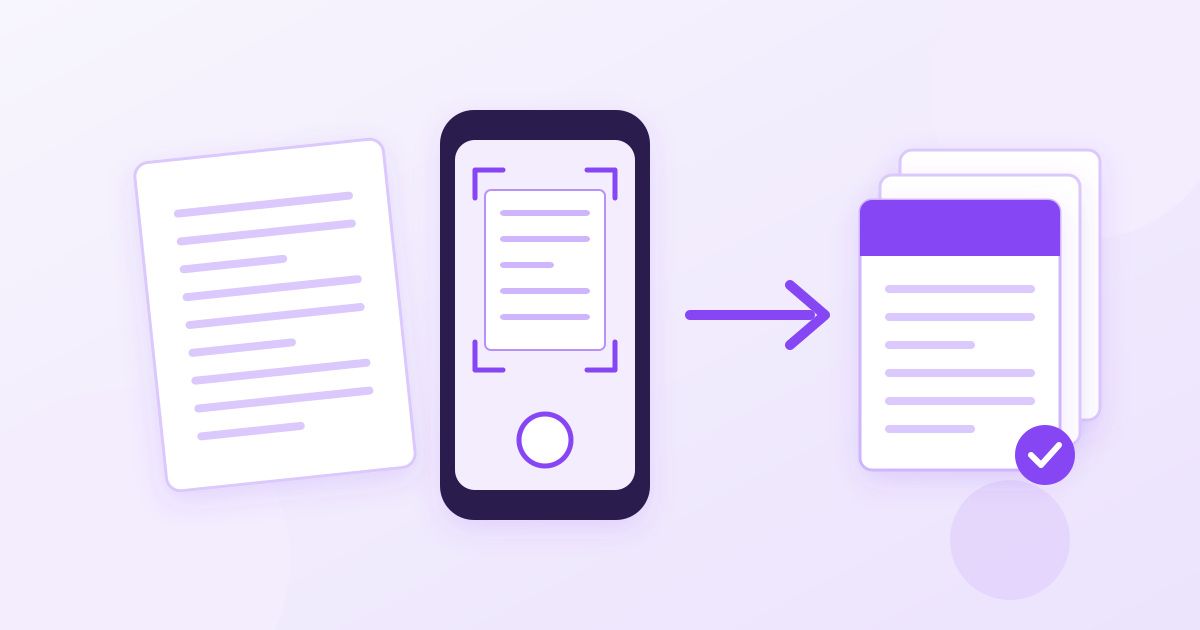
To scan a document to PDF with your phone, you do not need a scanner or a paid app. On an iPhone, the Notes app and the Files app both have a built-in document scanner that saves straight to PDF. On Android, the Google Drive app has a Scan button that does the same. If you have already taken ordinary photos of the pages, you can turn those photos into a PDF online for free.
This guide covers both routes: the built-in scanners for when the paper is in front of you, and the photo-to-PDF route for when all you have is pictures in your camera roll. It also covers the steps people skip, like cropping, rotating, merging pages into one file and getting the PDF under an upload limit.
Option 1: Use the scanner already on your phone
If the paper is still on your desk, a built-in scanner is the quickest path, because it finds the page edges, straightens the perspective and saves a multi-page PDF in one go.
iPhone and iPad
- Open the Notes app and start a new note (or open Files, tap the three-dot menu and choose Scan Documents).
- Tap the camera icon and pick Scan Documents.
- Hold the phone over the page. It usually captures automatically once the edges are detected; you can also tap the shutter.
- Repeat for every page, then tap Save.
- In Notes, open the scan, tap the share button and save or send it as a PDF.
Android
- Open the Google Drive app.
- Tap the + (or New) button and choose Scan.
- Photograph each page, adjust the crop if needed, and add pages with the plus icon.
- Tap Save; Drive stores the result as a PDF.
Menu names shift a little between phone models and app versions, but both scanners have been in these apps for years. The catch is that they only work on paper you can point the camera at right now.
Option 2: Turn photos you already took into a PDF
Often the photos already exist: you snapped a signed form at the office, a receipt on the train, or a friend sent you pictures of their notes. Re-photographing is not an option, but a form still wants a PDF. Here is the free online route, which works from a phone browser or a computer.
- Check the format. iPhones save photos as HEIC by default. If your pictures are HEIC, convert them to JPG first (Toolyfied has a free HEIC to JPG converter for this).
- Crop away the table. A photo of a page usually includes the desk, your fingers or a shadow. Trim it in the Image Cropper so only the page remains. The cropper works in your browser, so the photo is not uploaded for this step.
- Convert each photo to a PDF page. Upload a photo to the Image to PDF converter and download the PDF. The tool converts one image at a time, so a three-page document means three quick conversions.
- Combine the pages. Drop all the single-page PDFs into the PDF Merger, drag them into the right order and download one file.
- Shrink it if needed. If a portal rejects the file for size, run it through the PDF Compressor.
Each PDF page takes the shape of the photo you upload, so a tightly cropped page photo gives a page that looks like the paper, while an uncropped photo gives a page full of desk. That is why the cropping step matters more than it seems.
Which route should you use?
| Situation | Best route | Why |
|---|---|---|
| Paper in front of you, iPhone | Notes or Files scanner | Edge detection, multi-page PDF in one step |
| Paper in front of you, Android | Google Drive Scan | Same idea, saves to Drive as PDF |
| Photos already in your gallery | Crop, Image to PDF, then merge | No need to find the original paper again |
| Someone sent you photos on WhatsApp or email | Crop, Image to PDF, then merge | Works with any JPG, PNG or WebP |
| Scan is too big to upload | PDF Compressor | Phone scans are often several MB per page |
How to get a clean, readable scan
Whichever route you choose, the quality of the PDF is decided when you take the photo. A few habits make a big difference:
- Use daylight or a bright, even light. Overhead lamps cast the phone's shadow across the page. Standing near a window usually works better.
- Put the page on a dark, plain surface. Contrast helps scanners find the edges and makes cropping easier.
- Hold the phone flat above the page, not at an angle. Built-in scanners correct perspective, but a plain photo will keep the tilt.
- Turn off the flash for glossy paper, which reflects it as a white blob.
- Check every page before you send it. Zoom in on small print, signatures and dates. A blurry figure on an invoice can cause more trouble than a slow upload.
Fixing common problems after scanning
A page is sideways or upside down
This happens when the phone was turned while shooting. If every page in the file is rotated the same way, open the PDF in the Rotate PDF tool and turn it 90, 180 or 270 degrees; the rotation is saved into the file. If only one page is wrong, it is usually easiest to fix that single photo's orientation, convert it again and re-merge.
The PDF is too large for the upload form
Job portals, visa forms and university applications often cap uploads at 1 to 5 MB. Phone cameras produce large images, so a multi-page scan can easily exceed that. Compress the finished PDF, then open it and confirm the text is still sharp. If it is still too large, compressing the photos before converting them with an image compressor is another lever.
You need the text, not just a picture of it
A scan is an image, so you cannot search it or copy a sentence out of it. For English documents, the Image to Text (OCR) tool extracts the text from a photo or scanned PDF so you can copy it or download it as a .txt file. It reads English text only, so it is not the right tool for other languages, and you should always proofread the result against the original.
Pages are in the wrong order
In the merger you can drag files into order before combining them. If you notice the mistake later, merge again rather than trying to edit around it.
Is it safe to scan documents online?
Be thoughtful with sensitive papers such as IDs, bank letters and medical forms. Built-in phone scanners keep the file on your phone (or in your own cloud storage, if you save it there). On Toolyfied, the image cropper and the PDF merger run in your browser and do not upload the file, while converters such as Image to PDF, HEIC to JPG and the PDF Compressor process the file on Toolyfied's server. Uploaded files are used only to produce your result, and old files are cleaned up from the server automatically every day. No account is needed and nothing is watermarked.
For a passport scan or anything similar, a sensible rule is to use the built-in scanner when you can, and send the final PDF only to the organisation that asked for it.
A quick checklist before you hit send
- All pages are present and in order.
- Every page is upright and readable when zoomed in.
- No fingers, desk edges or shadows covering text.
- The file is under the size limit of the form you are uploading to.
- The file name says what it is, such as lease-signed-pages.pdf, not IMG_4821.pdf.
With the built-in scanner for paper and the crop, convert and merge route for existing photos, you can produce a tidy PDF from almost anything your phone camera has captured, without installing a dedicated scanning app.
Frequently Asked Questions
How do I scan a document to PDF on my iPhone for free?
Open the Notes app, start a note, tap the camera icon and choose Scan Documents. Capture each page, tap Save, then share the scan as a PDF. The Files app has the same Scan Documents option in its three-dot menu.
Can I scan documents to PDF on Android without an app?
Most Android phones already have the Google Drive app, which has a Scan option under the plus button that saves pages as a PDF. If you already have photos of the pages, you can also convert them to PDF in a browser with an online image-to-PDF tool.
How do I turn several photos into one PDF?
Convert each photo to a PDF page with an image-to-PDF converter, then combine the pages in a PDF merger, where you can drag them into the right order before downloading one file.
Why is my scanned PDF so large?
Phone cameras capture high-resolution images, and each page of a scan is essentially a photo. Compress the finished PDF, or compress the photos before converting them, and check that small print is still readable afterwards.
Can I copy text out of a scanned PDF?
Not directly, because a scan is an image. An OCR tool can extract the text; Toolyfied's Image to Text tool works on photos and scanned PDFs with English text and lets you copy or download the result.
Is a photo of a document the same as a scan?
Close enough for most online forms, as long as the page is cropped, flat, upright and sharp. Built-in scanners do the cropping and perspective correction for you, while a plain photo needs cropping by hand.



