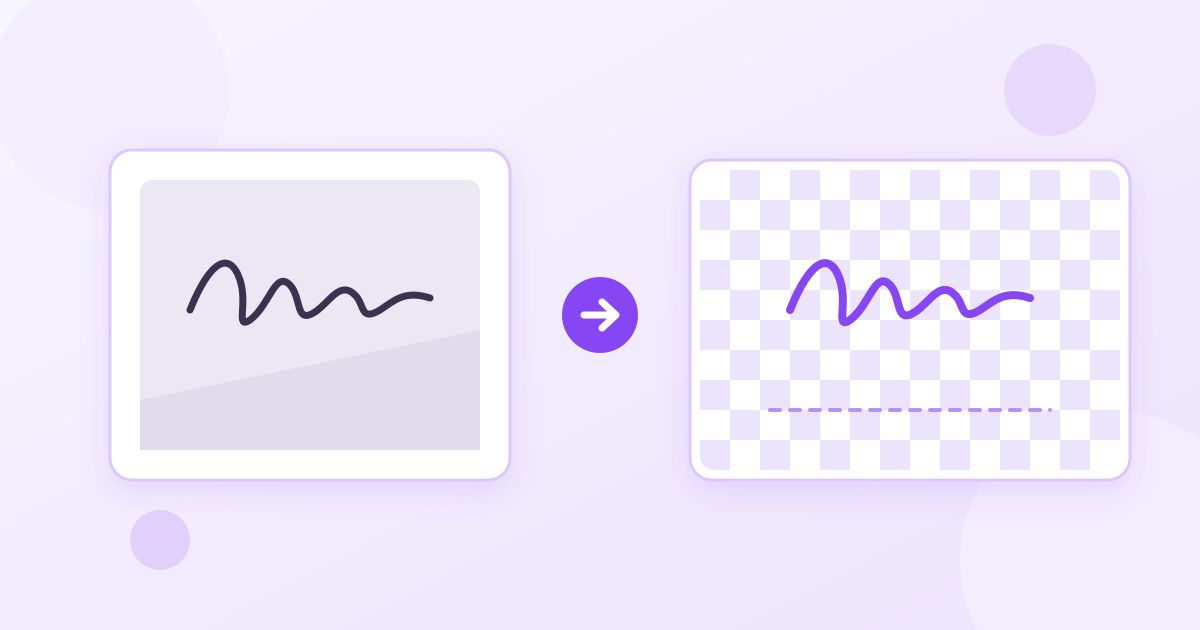
To make a transparent signature PNG, sign your name in dark ink on plain white paper, take a straight, well-lit photo, run it through a background remover, then crop it tight and save it as PNG. The result is a signature with no white box around it that you can drop onto letters, forms and contracts. This guide walks through each step and covers the mistakes that leave grey halos or a white rectangle behind.
The short version: white paper, black or dark blue pen, good daylight, PNG not JPG. Everything below is about getting a clean result the first time.
Why a transparent PNG and not a normal photo?
A phone photo of your signature is a JPG with a background: the paper, its texture, and usually a shadow from your hand or phone. Paste it onto a document and you get a grey or off-white rectangle sitting on top of the page. It looks pasted on because it is.
A transparent PNG keeps only the ink. The pixels around the strokes are empty, so whatever is underneath, whether a white page, a coloured letterhead or a form field with a light tint, shows through. That is the only image format most people need for this, because:
- JPG cannot store transparency. If you save the finished signature as JPG, the empty areas are filled with white again.
- PNG keeps sharp edges. Thin pen strokes stay crisp instead of picking up the blocky artefacts JPG compression adds.
- Word, Google Docs, PowerPoint, email clients and most PDF editors accept PNG and respect its transparency.
Step 1: Sign so the photo is easy to clean
Most bad signature images are decided before any tool touches them. A few minutes here saves a lot of fiddling later.
- Use plain white printer paper. Lined or squared paper leaves lines that a background remover may treat as part of the signature.
- Use a felt-tip or gel pen in black or dark blue. A thicker, darker line separates cleanly from the paper. A faint ballpoint scrawl breaks up into dotted strokes.
- Sign larger than usual. A signature about 8 to 10 cm wide gives the photo enough detail that it still looks smooth when shrunk.
- Sign a few times and pick the best one. Nobody's first attempt on demand looks natural.
Step 2: Take a straight, shadow-free photo
Put the paper on a flat surface near a window in daylight. Hold the phone directly above it, parallel to the paper, so the signature is not skewed. Watch for the shadow of the phone itself: if light comes from behind you, move so it comes from the side.
Fill most of the frame with the signature, but leave a little margin around it. Do not use the flash; it creates a bright hotspot in the middle and darker corners, which makes the background uneven.
If you use an iPhone, the photo may save as HEIC. Most tools accept it, but if one refuses the file, convert it first with the HEIC to JPG converter. The JPG is only a working copy; you will export the final signature as PNG.
Step 3: Remove the background
Open the Background Remover and upload the photo. It uses an AI model to detect the subject and cut away the rest, and it returns a transparent PNG. The tool runs in your browser, so the photo is not uploaded to a server, which is worth knowing when the image is your signature. It is free, needs no account, and adds no watermark.
Background removal models are trained mainly on people and objects, so check the result closely at full size:
- Thin strokes missing? The pen line was too faint. Re-sign with a darker, thicker pen and photograph again.
- Paper patches left behind? Usually a shadow or a fold. Retake the photo with even light.
- Grey fringe around the ink? Common with slightly blurry photos. A sharper photo fixes it better than any editing.
Download the result as PNG and keep that file name somewhere you will find it again.
Step 4: Crop it tight and set a sensible size
The PNG from step 3 is still the size of your whole photo, mostly empty pixels. That empty area matters: when you insert the image into a document, the invisible box around the signature makes it awkward to position and can push text around.
Use the Image Cropper to trim right up to the edges of the ink, leaving a few pixels of space. Like the background remover, the cropper works in your browser.
Then think about size. A phone photo can be 3000 pixels wide or more, far bigger than a signature needs. The Image Resizer sets exact pixel dimensions. Before you resize, check that the downloaded file is still a PNG; if any step hands you a JPG, the background has turned white again.
| Where you will use it | Suggested width | Why |
|---|---|---|
| Word or Google Docs letters | About 600 to 900 px | Sharp when printed at normal signature size, still small in file size |
| PDF forms and contracts | About 600 to 900 px | Stays crisp when the viewer zooms in |
| Email signature block | About 300 to 400 px | Displays at a modest size; smaller files load faster in inboxes |
| Printing large (certificates, posters) | Keep it large, or vectorize it | Upscaling a small PNG later looks soft |
These are practical ranges, not rules. Keep an untouched full-size copy as your master file and make smaller versions from it as needed.
Optional: turn it into a vector (SVG)
If you want a signature that scales to any size without going soft, for a certificate template or a print design, convert the PNG with the PNG to SVG converter. It traces the ink into real vector paths on Toolyfied's server. The output is single-colour: your signature comes out as one black shape, which suits a signature well. You can recolour it in any vector editor. For everyday documents the PNG is all you need.
How to use your transparent signature
In Word: Insert > Pictures, choose the PNG, then set the wrap option to "In Front of Text" so you can drag it onto the signature line without moving the paragraphs around it.
In Google Docs: Insert > Image > Upload from computer. Use "In front of text" from the image options to place it freely.
In an email signature: Gmail and Outlook let you add an image to your signature settings. Use the smaller version so it does not dominate the message.
On a PDF: Many PDF editors let you insert an image. If you only need to sign, the PDF Signature tool lets you draw your signature directly and place it anywhere on the page, which is often quicker than preparing an image at all.
Keep your signature image safe
A clean signature file is convenient, and that convenience cuts both ways: anyone who gets a copy can paste it onto a document. Treat it like a key.
- Do not post the image publicly or leave it in a shared folder.
- Send signed documents as PDFs, not as editable files with the signature image sitting loose inside.
- For anything high-stakes, such as property, wills or large financial agreements, check what kind of signature is required. Some need a witness, a notary or a certificate-based digital signature rather than a pasted image.
This is general information, not legal advice. Rules on electronic signatures vary by country and by document type.
Common problems and quick fixes
- White box still visible: the file was saved or re-exported as JPG somewhere along the way. Go back to the PNG from the background remover.
- Signature looks jagged in the document: the image is too small and the document is stretching it. Use a larger version.
- Signature looks grey instead of black: the photo was underexposed or the pen was light. Retake with more light and a darker pen.
- Parts of the signature disappeared: very thin strokes can be read as background. A thicker pen solves this more reliably than retrying the tool.
Frequently Asked Questions
How do I make my signature transparent for free?
Sign on white paper with a dark pen, photograph it in even light, then upload the photo to a free background remover such as Toolyfied's. Download the result as PNG and crop it tight. No software or account is needed.
Why does my signature still have a white background?
The file was almost certainly saved as JPG at some point, and JPG cannot store transparency. Go back to the PNG from the background remover and keep every later step in PNG.
What is the best size for a signature image?
For letters and PDFs, a width of roughly 600 to 900 pixels stays sharp without making the file heavy. For an email signature, around 300 to 400 pixels is usually plenty. Keep a full-size master copy and resize from that.
Can I make a transparent signature on my phone?
Yes. Take the photo with your phone camera, then open the background remover and cropper in your mobile browser. Both work on phones, and the final PNG downloads to your device.
Is it safe to use an image of my signature?
It is fine for everyday documents, but keep the file private because anyone with a copy could paste it elsewhere. Some documents, such as property deeds or wills, may require a witness, notary or certificate-based digital signature instead. This is general information, not legal advice.
Should I save my signature as PNG or SVG?
PNG is right for almost all everyday use in Word, Google Docs, email and PDFs. SVG is useful when you need to scale the signature very large for print, since vector paths never go blurry. Toolyfied's PNG to SVG converter outputs a single-colour black tracing.