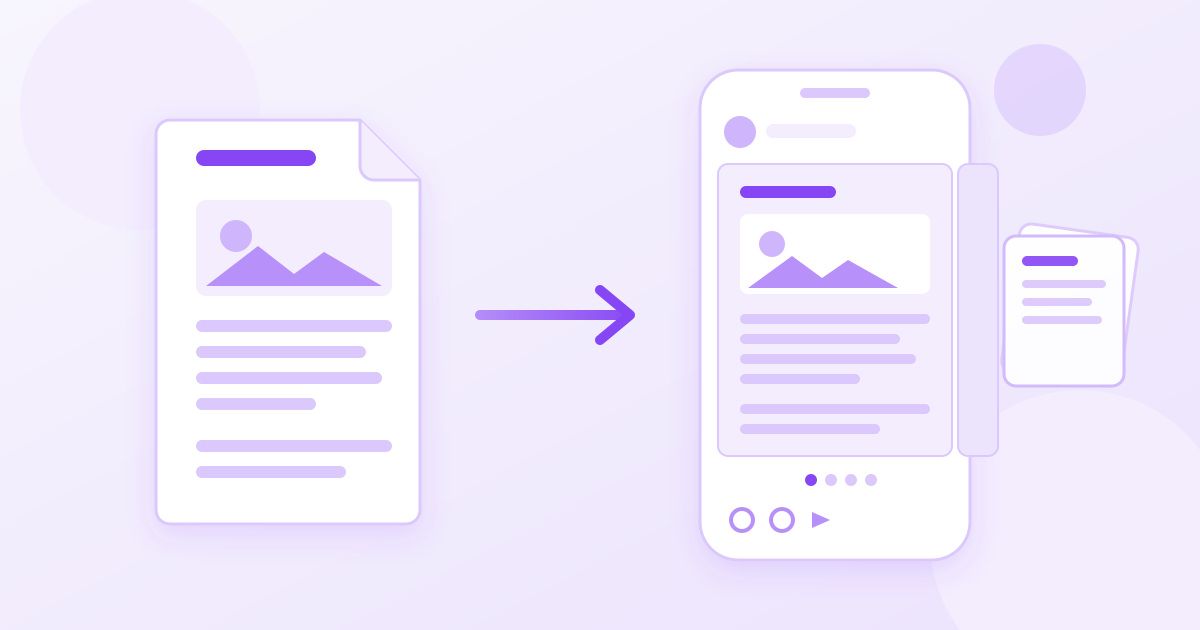
Instagram does not accept PDF files, so the only way to post a PDF on Instagram is to turn each page into an image and upload those images as a carousel. Convert the PDF to JPG, fit each page to a shape Instagram will not crop (square or 4:5 portrait), then select the images in order when you create the post. The whole job takes a few minutes and needs no design app.
This guide walks through that process step by step, explains the sizes that keep text readable, and covers the two alternatives people often want instead: sharing the PDF as a link, or sending it in a direct message.
Why Instagram will not take your PDF directly
Instagram is built around photos and videos. The post composer only lets you pick images and video clips from your camera roll or computer, and a PDF is a document format, so it simply does not appear as an option. There is no setting that changes this.
That is why menus, event programmes, price lists, guides, slide decks and portfolios usually show up on Instagram as swipeable carousels. Each slide is one page of the original document, saved as an image.
Step 1: Convert the PDF pages to JPG
Open the PDF to JPG converter, upload your file and download the result. Each page becomes its own JPG image; if the PDF has more than one page, you get a ZIP file containing one image per page, numbered in order. It is free, needs no sign-up and adds no watermark.
A few things to know before you convert:
- Pages are rendered at print-friendly resolution. A standard Letter or A4 page comes out at roughly 1,200 to 1,300 pixels wide, which is comfortably above the 1,080 pixels Instagram displays.
- Unzip before uploading. On a phone, open the ZIP in the Files app (iPhone) or your file manager (Android) and save the images to your photos so Instagram can see them.
- Cut the document down first if it is long. Instagram carousels have a slide limit (20 at the time of writing, and it has changed before). If your PDF is longer, use the PDF splitter to pull out only the pages worth posting, for example pages 1-3 and 7, before converting.
Step 2: Fit the pages to an Instagram-friendly shape
This is the step most people skip, and it is why so many PDF carousels look awkward. A Letter or A4 page is taller than anything Instagram shows in the feed. Feed posts can be anywhere from wide landscape to 4:5 portrait, and a carousel uses the shape of the first slide for every slide. Anything taller gets cropped, which can slice through a heading or the last line of a page.
| Format | Shape | Recommended pixels | Good for |
|---|---|---|---|
| Portrait | 4:5 | 1080 × 1350 | Document pages, menus, guides — shows the most of a tall page |
| Square | 1:1 | 1080 × 1080 | Slides with a short headline, quote cards, single charts |
| Letter / A4 page as-is | about 1:1.3 to 1:1.4 | — | Not ideal: taller than 4:5, so Instagram trims the top and bottom |
You have two clean ways to get there:
- Crop to the part that matters. If the page has generous margins, the image cropper lets you trim them away. Use the square preset for 1:1 slides, or crop freehand for portrait pages and keep an eye on the proportions. Cropping removes white space and makes the text larger on screen, which matters on a phone.
- Set exact dimensions. After cropping, run each image through the image resizer and set 1080 × 1350 for portrait or 1080 × 1080 for square. If you resize without cropping first, the page will be squashed, so crop to roughly the right shape before you resize.
Use the same shape for every slide. Mixed sizes in one carousel end up cropped to the first slide's shape anyway, so you lose control of what gets trimmed.
Step 3: Check that the text is readable on a phone
A page that looks fine on a laptop can be unreadable on a 6-inch screen. Before posting, open one of the converted images on your phone and look at it at normal size without zooming.
- If body text is hard to read, crop tighter or split a dense page into two slides (top half and bottom half).
- Small footnotes, legal text and tables with many columns rarely survive. Put those in the caption or link to the full PDF instead.
- Light grey text on white tends to disappear after Instagram's own compression. Darker text holds up better.
Step 4: Create the carousel
- In the Instagram app, tap the + button and choose Post.
- Tap the multi-select icon (two overlapping squares), then tap your images in page order. The numbers on each thumbnail show the slide order.
- Check the crop on the first image. Since it sets the shape for the carousel, make sure it is the shape you prepared.
- Add a caption that tells people to swipe, and mention where the full document lives if you are sharing one.
If you are posting from a computer, the Instagram website supports multiple images in one post the same way: select several files in the upload dialog.
Keep file sizes sensible
Instagram re-compresses everything you upload, so there is no benefit to uploading huge files. If your exported images are several megabytes each, an image compressor can bring them down with little visible loss. This also helps if you are uploading on mobile data or a slow connection. Note that cropped images are saved as PNG, which can be larger than the original JPG for text-heavy pages; compressing them, or converting to JPG, keeps the upload quick.
Alternatives: link or DM the PDF instead
A carousel is the right choice when people should see the content in their feed. If they need the actual document, such as a form to fill in or a full price list to save, a carousel is not enough.
- Link in bio. Upload the PDF to cloud storage or your website, then add the link to your profile. Point people to it in the caption. Many accounts post a two- or three-slide teaser carousel and send people to the bio link for the full file.
- Direct messages. Whether you can attach a document file in a DM depends on your app version and region, and Instagram changes this often. A link to the PDF works for everyone, so that is the dependable approach.
- Stories. Stories use a 9:16 shape, which suits one page at a time poorly. A single highlighted page with a link sticker works better than trying to fit a whole document.
Quick checklist
- Trim the PDF to the pages worth posting.
- Convert pages to JPG.
- Crop margins and resize to 1080 × 1350 or 1080 × 1080, the same for every slide.
- Check readability on a phone screen.
- Upload in page order as one carousel, and link the full PDF if people need it.
Uploaded files are used only to produce your images, and old files are cleaned up from Toolyfied's servers automatically every day. If the document is confidential, think twice about whether it belongs on a public Instagram post at all.
Frequently Asked Questions
Can you upload a PDF directly to Instagram?
No. Instagram posts only accept images and videos, so a PDF has to be converted to images first. Each page becomes one slide in a carousel post.
What size should PDF pages be for an Instagram carousel?
Use 1080 × 1350 pixels (4:5 portrait) for document pages, or 1080 × 1080 for square slides. Keep every slide the same shape, because the carousel uses the first slide's shape for all of them.
How many pages of a PDF can I post on Instagram?
A carousel holds up to 20 slides at the time of writing, though Instagram has changed this limit before. For longer documents, post the most useful pages and link the full PDF in your bio.
Why does my PDF page get cut off on Instagram?
Letter and A4 pages are taller than Instagram's tallest feed shape (4:5), so the app trims the top and bottom. Crop away margins and resize to 1080 × 1350 before uploading to control what stays visible.
How do I convert a PDF to images on my phone?
Upload the PDF to an online PDF to JPG converter in your phone's browser and download the result. A multi-page PDF comes back as a ZIP; open it in Files or your file manager and save the images to your photos.
Can I send a PDF in an Instagram DM?
Document attachments in DMs depend on your app version and region. Sending a link to the PDF, stored in cloud storage or on your website, works for everyone.



