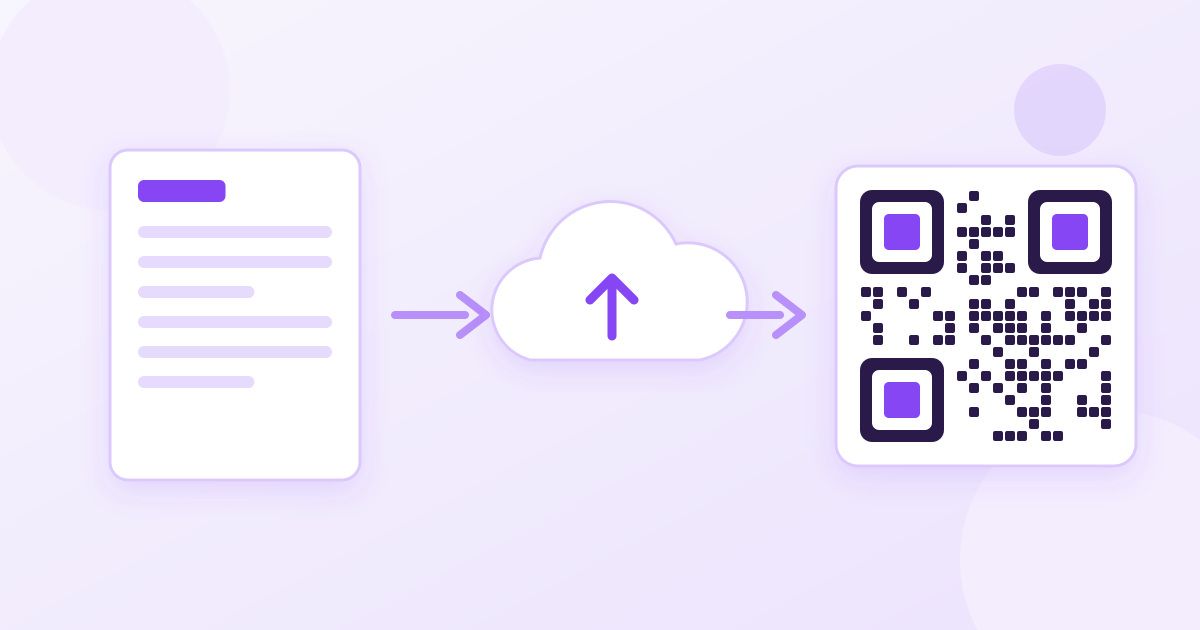
A QR code cannot hold a PDF. It holds a short piece of text, and for a PDF that text is a link. So making a QR code for a PDF takes two steps: put the PDF somewhere it has a public link, then turn that link into a QR code. Both steps are free, and the code you get never expires on its own.
Below you will find the quickest way to do it, where to host the file, and the mistakes that leave a printed code pointing at a "You need access" page.
Why a QR code can't store the PDF itself
The largest QR code standard tops out at a few kilobytes of data. Even a one-page PDF with a logo is usually hundreds of kilobytes, and a menu or brochure with photos runs to several megabytes. That is why every "PDF QR code" works the same way underneath: the file sits on a server, and the code carries its address. When someone scans it, the phone opens the address in a browser, and the browser shows the PDF.
This matters because it tells you what can go wrong. If the link stops working, the code stops working, even though the black-and-white pattern on your poster is unchanged.
How to make a QR code for a PDF, step by step
- Get the PDF ready. Make sure it is the final version and a sensible size for phones (more on that below).
- Upload it somewhere public. Google Drive, OneDrive, Dropbox or your own website all work.
- Copy a share link that anyone can open. This is the step people get wrong most often.
- Test the link in a private browser window. If it opens there without asking you to sign in, strangers will be able to open it too.
- Paste the link into a QR generator. On the Toolyfied QR Code Generator, choose the Website type, paste the full link including
https://, and generate. - Download and scan it with two different phones before you print anything.
The generator produces a static code: the link is written directly into the pattern, so there is no subscription and nothing that expires. It downloads as a 400-pixel PNG in black on white, which is plenty for screens, flyers and A4 posters.
Where to host the PDF (and the sharing setting that matters)
The host decides whether the code keeps working. Each option has one setting that trips people up.
| Where the PDF lives | Setting to check | Good for |
|---|---|---|
| Google Drive | Share → General access → Anyone with the link (Viewer). "Restricted" shows scanners a request-access screen. | Quick, free, easy to update the file later |
| OneDrive | Share → link settings → Anyone, not "People in your organisation". Work accounts sometimes block this. | Microsoft 365 users |
| Dropbox | Copy a view link with access set to anyone with the link. | Files you already keep in Dropbox |
| Your own website | Upload the PDF to your media library and use its direct URL. | Businesses: you control the link for years |
If you own a website, hosting the PDF there is the most durable option. A cloud drive link breaks if someone deletes the file, tidies up a shared folder or closes the account that owns it.
Make the PDF phone-friendly first
Almost everyone who scans your code will open the PDF on mobile data, often standing in front of a poster or sitting at a restaurant table. A 25 MB file made from print-quality artwork takes a long time to load, and some people will give up before it appears.
- Shrink it. Run the file through the PDF Compressor. Text stays sharp, and image-heavy pages usually get much smaller.
- Keep it to one file. If a menu or a handout is split across several PDFs, combine them with the PDF Merger so one code opens everything in order.
- Turning photos into a PDF? If what you have is a photo of a flyer or a price list, the Image to PDF Converter turns each image into a PDF, and the merger can then join the pages.
- Check that portrait pages are upright. A sideways page is awkward on a phone. Fix it once and save it with Rotate PDF.
Small details help too. Use large fonts on menus and keep the most important information on the first page, because that is all many people will read.
Can you change the PDF after printing the code?
Yes, as long as the link stays the same. The code only knows the address, so what you can safely change depends on the host:
- Your website: upload the new version under the same file name and URL, and the old code opens the new file.
- Google Drive: use Manage versions (or File information → Manage versions) to upload a new version of the same file. Uploading it as a new file gives it a new link, and the printed code keeps opening the old one.
- Other drives: look for a "replace" or "upload new version" option rather than deleting and re-uploading.
This is the honest trade-off of a static code. It costs nothing and never expires, but you manage the link yourself. Paid "dynamic" QR services let you change the destination from a dashboard, and in exchange the code depends on that service and the subscription that pays for it.
Printing the code so it actually scans
- Size: about 2 × 2 cm is the practical minimum for something scanned from arm's length, such as a table card. Posters read from further away need a much bigger code.
- Quiet zone: leave a clear white border around the code. Do not let a photo or a coloured panel run right up to the edge.
- Contrast: dark code on a light background. Avoid printing it inverted or on glossy surfaces that catch reflections.
- A line of text: add a short label such as "Scan for the full menu (PDF)" so people know what they will get.
The PNG from the generator is sized for screens and normal print. If you scale it up a lot for a banner, it will look soft at the edges but still scan, because QR readers only need clear contrast between the squares.
Common reasons a PDF QR code doesn't work
| What scanners see | Likely cause | Fix |
|---|---|---|
| "You need access" or a sign-in page | The file is shared only with specific people | Change sharing to anyone with the link |
| "File not found" or a 404 | The file was moved, renamed or deleted | Restore it at the same link, or reprint with a new code |
| A very long blank loading screen | The PDF is huge | Compress it and replace the file at the same link |
| The phone doesn't react at all | Code printed too small, low contrast, or no white border | Reprint larger with a clear margin |
| A password prompt | The PDF is password-protected | Intentional? Share the password separately. If not, upload an unprotected copy. |
What about private documents?
Anyone who scans the code, or photographs it, can open the PDF. Treat a QR code like a link pinned to a noticeboard. That is fine for menus, brochures, event programmes and product manuals. It is not the right way to share payslips, contracts or anything with personal data.
If a document must be shared this way but only with certain people, you can add a password with Protect PDF and give the password out in person. Readers will be asked for it before the PDF opens. This is general information rather than security advice. For anything genuinely sensitive, use a sharing method where you control exactly who has access.
Quick checklist
- Final PDF, compressed, pages upright.
- Uploaded where it will stay, and shared with anyone who has the link.
- Link tested in a private window.
- QR made with the Website type, downloaded as PNG.
- Scanned with two phones before printing, with a white border and a short label.
Frequently Asked Questions
Can I make a QR code for a PDF without uploading it anywhere?
No. A QR code only holds a small amount of text, far less than even a short PDF, so the file has to be hosted online and the code carries its link. Google Drive, OneDrive, Dropbox or your own website all work for free.
Do free PDF QR codes expire?
A static QR code never expires, because the link is written into the pattern itself. It only stops working if the link behind it breaks, for example when the PDF is deleted, moved or its sharing is turned off.
Why does my QR code open a Google Drive 'request access' page?
The file's general access is set to Restricted. Open Share in Google Drive, change General access to 'Anyone with the link' with Viewer rights, and the same QR code will start working without being regenerated.
Can I update the PDF without changing the QR code?
Yes, if the link stays the same. Replace the file at the same URL on your website, or use Google Drive's Manage versions option. Uploading the new PDF as a separate file creates a new link that the printed code won't know about.
How big should I print a QR code for a PDF?
Around 2 × 2 cm is a practical minimum for codes scanned from arm's length, such as table cards. Codes on posters or windows read from further away need to be much larger, and every code needs a clear white border around it.
Is it safe to put a private document behind a QR code?
Anyone who scans or photographs the code can open the file, so it suits public material like menus and brochures. If you must use one for a restricted document, password-protect the PDF and share the password separately. This is general information, not security advice.



