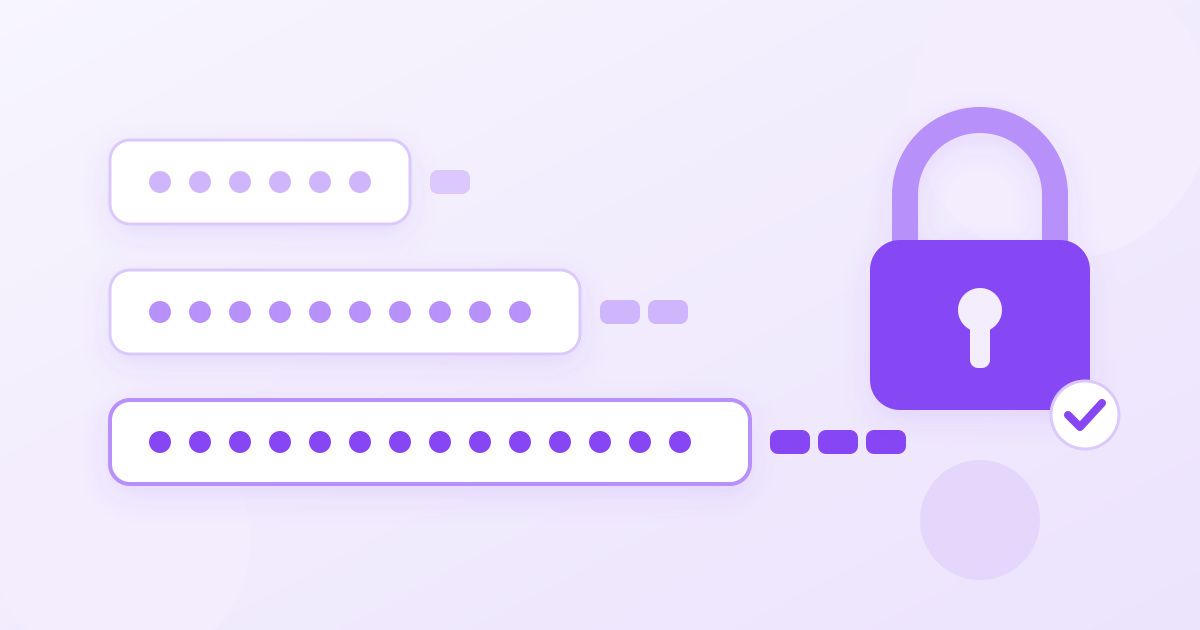
A password should be at least 15 characters long if it is the only thing protecting an account, and 12 characters is the bare minimum most security guidance still accepts. Length matters far more than symbols: a random 16-character password, or a passphrase of four or five unrelated words, is much harder to crack than a short one stuffed with punctuation. Use a different one for every account and let a password manager remember them.
That is the short answer. The rest of this guide explains where those numbers come from, how long a password should be for different kinds of accounts, why "complex" rules often make passwords weaker, and how to make a long password you can actually live with. It is general information, not a substitute for advice from your own IT or security team.
Why length beats complexity
Attackers who steal a database of hashed passwords do not guess one character at a time by hand. They run software that tries billions of combinations, starting with the most likely ones: leaked passwords, dictionary words, names, dates and the predictable substitutions people make (an @ for an "a", a 1 for an "i", an exclamation mark on the end).
Every extra character multiplies the number of combinations the attacker has to try. Adding one more random character from a pool of about 90 possible symbols makes the search roughly 90 times bigger. Adding a symbol to a short password helps far less, especially when the symbol goes where everyone puts it, at the end.
This is why current guidance from the US National Institute of Standards and Technology (NIST, in its SP 800-63B digital identity guidelines) moved away from composition rules. The recent revision asks services to require a minimum of 15 characters when a password is used on its own, allows 8 when the password is only one part of multi-factor sign-in, tells sites to accept long passwords (at least 64 characters), and advises against forcing people to change passwords on a schedule unless there is a sign of compromise. Your bank or employer may set its own rules, but the direction is clear: longer and unique, not shorter and stranger.
How long should a password be? A practical table
Not every account needs the same treatment. Here is a sensible way to think about it.
| Account type | Recommended length | Why |
|---|---|---|
| Email (your main inbox) | 16+ random characters, or a 5-word passphrase | Password resets for almost everything else arrive here |
| Password manager master password | A 5–6 word passphrase you can type | You must remember it, and it unlocks everything |
| Banking, payment and work accounts | 16+ characters plus two-factor sign-in | High value, frequent targets |
| Social media, shopping, streaming | 14–16 random characters | Unique matters more than extreme length |
| Home Wi-Fi network | 16–20 characters | Rarely typed, easy to share another way |
| Phone or laptop unlock code | As long as you tolerate (6+ digit PIN, or a passphrase) | The device limits guessing attempts |
Notice that the table never asks for a 40-character monster. Past roughly 16 truly random characters, the password is very rarely the weak point. Phishing, reuse and a missing second factor are.
Is an 8-character password still OK?
Not on its own. Eight characters was the old standard, and many sites still accept it, but short passwords are exactly what offline cracking tools handle best, particularly if the password follows a common pattern like a capitalised word, two digits and a symbol. If a site only lets you use 8 characters, make them fully random and switch on two-factor authentication there.
Twelve characters is a reasonable floor for low-value accounts if they are random and unique. For anything that matters, aim for 15 or 16.
Random characters or a passphrase?
Both work. The right choice depends on whether you need to remember it.
- Random characters (for example a 16-character mix of letters, digits and symbols) pack the most strength into the fewest characters. They are ideal for every account your password manager fills in for you.
- Passphrases are four to six unrelated words, such as a string of a kitchen object, a colour, an animal and a verb. They are longer but far easier to type and remember. They are the best fit for the few passwords you must type from memory: your password manager, your computer login, perhaps your main email.
The word "unrelated" is doing a lot of work. A line from a song, a famous quote or your pet's name followed by your street is not random; attackers' word lists contain those. Pick the words by chance, not by meaning.
How to create a long password without the headache
- Generate it instead of inventing it. People are bad at randomness. The free Toolyfied password generator creates passwords between 4 and 20 characters long with your choice of lowercase, uppercase, numbers and symbols, and an option to exclude look-alike characters such as 0 and O. It runs entirely in your browser using the Web Crypto API, so the password is never sent to or stored on a server. Set it to 16 characters or more for important accounts.
- Save it in a password manager immediately. The manager in your browser, phone or a dedicated app all beat a sticky note or a reused password.
- Turn on two-factor authentication for email, banking and work accounts. An authenticator app or a passkey stops most account takeovers even when a password leaks.
- Never reuse it. A 20-character password used on five sites is only as safe as the least careful of those five sites.
Common password rules that do not help much
Some habits feel secure but add little:
- Changing passwords every 90 days. Forced rotation tends to produce predictable variations (Summer2026!, Autumn2026!). Change a password when there is a reason: a breach notice, a shared device, a suspicious login.
- Swapping letters for look-alike symbols. Cracking tools try these substitutions automatically.
- Adding a symbol at the end. It is the first place software looks.
- Security questions with true answers. Your first school or mother's maiden name can often be found online. If a site forces these, treat the answers like extra passwords and store them in your manager.
Long passwords for files and Wi-Fi
Length matters just as much when the password protects a file rather than an account. If you password-protect a PDF with Toolyfied, the document is encrypted with AES-256, but the encryption is only as strong as the password you choose. Anyone who gets a copy of the file can try passwords against it offline as often as they like, so use 16 characters or more and send the password through a different channel than the file itself (for example, the PDF by email and the password by text message).
Home Wi-Fi is the classic place people pick something short so guests can type it. You do not have to. Set a long random Wi-Fi password and make a Wi-Fi QR code for it; visitors scan the code with their phone camera and join without typing anything. Static QR codes from the generator never expire, so you can print one and stick it inside a cupboard door.
What if a site will not accept a long password?
Some older sites cap passwords at 12 or 16 characters or reject certain symbols. In that case, use the longest password the site allows, made of fully random characters from whichever sets it accepts. If the generator's symbols are rejected, switch symbols off and add a few characters of length instead; the extra length makes up for the smaller character pool. Then add two-factor sign-in if the site offers it.
A quick checklist
- 15–16+ characters for anything important; 12 at the very least elsewhere.
- Random characters for passwords a manager fills in; a 5-word random passphrase for the few you type.
- One password per account, never reused.
- Two-factor authentication on email, money and work accounts.
- Change a password when there is a reason, not on a calendar.
Get those five right and the length question takes care of itself. To start, open the password generator, set the length to 16 and replace the password on your main email account first, since that inbox is the key to resetting everything else.
Frequently Asked Questions
How many characters should a strong password have?
Aim for at least 15 or 16 characters for important accounts such as email and banking, and no fewer than 12 for anything else. The characters should be random rather than a word with a few substitutions. A passphrase of four to six unrelated words is a good alternative when you need to remember it.
Is a 12-character password secure enough?
A random, unique 12-character password is acceptable for low-value accounts, especially with two-factor sign-in turned on. For your main email, password manager and financial accounts, go longer: 15 to 16 characters or a five-word passphrase gives you a comfortable margin.
Is a long password better than a complex one?
Yes, in most cases. Each extra random character multiplies the number of guesses an attacker needs, while symbols added in predictable places add very little. Current NIST guidance favours length and uniqueness over composition rules like 'must contain a symbol'.
What does NIST recommend for password length?
The current revision of NIST SP 800-63B asks services to require at least 15 characters when a password is the only sign-in factor, allows 8 when it is part of multi-factor authentication, and says sites should accept passwords of at least 64 characters. It also advises against forced periodic password changes. This is general information, not formal security advice.
Should I change my passwords regularly?
Only when there is a reason, such as a breach notification, a suspicious login or a password you shared on another device. Forced rotation on a schedule tends to produce predictable variations that are easier to guess. A long, unique password plus two-factor sign-in is a better use of your effort.
Are online password generators safe to use?
It depends on how they work. Toolyfied's password generator creates passwords in your browser with the Web Crypto API, so the password is never sent to or stored on a server, and there is no account or password history. Whichever tool you use, save the result straight into a password manager.