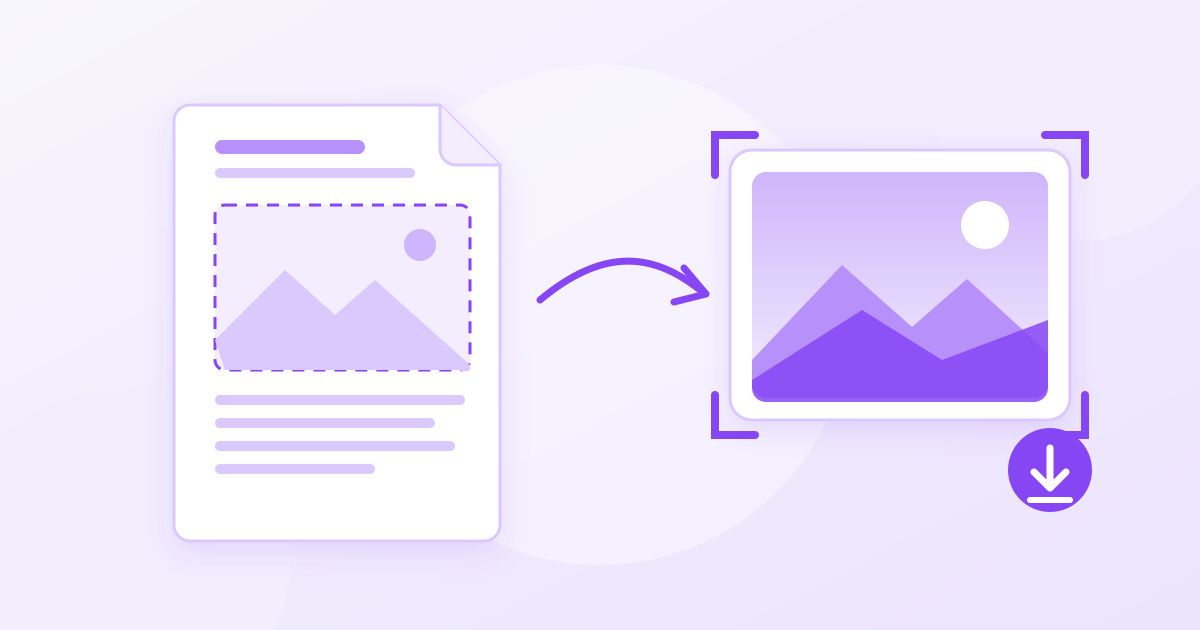
To get images out of a PDF for free, you have two realistic routes: turn the page that holds the picture into a JPG and crop the picture out, or use an extractor that pulls the original embedded image files. The first works on any device in a couple of minutes; the second gives you the untouched originals but usually needs desktop software. This guide walks through both, and helps you pick the right one for your file.
Which route is right depends on one question: do you need the exact original image file (for example, a product photo you want to reprint), or do you just need a usable picture of what you can see on the page (a chart for a slide, a logo for a quick mock-up, a diagram for your notes)? Most people are in the second group, and that is the faster path.
Method 1: Convert the page to JPG, then crop the image
This is the method that works everywhere, including on a phone, and it captures exactly what you see on the page, even when the "image" is really a vector drawing or a chart built from shapes.
- Isolate the page (optional but tidy). If the picture sits on page 14 of a 60-page report, use the PDF Splitter to pull out just that page range first, for example 14 or 14-15. You then convert one or two pages instead of sixty.
- Render the page as an image. Upload the PDF to the PDF to JPG Converter. Each page becomes a JPG; a multi-page PDF comes back as a ZIP with one image per page.
- Crop out the picture. Open the page image in the Image Cropper and drag the crop box tightly around the photo, chart or logo you want. The cropper runs in your browser, so this step does not upload the image anywhere.
- Size it for where it is going. If you need exact dimensions, such as 1200 pixels wide for a blog header, use the Image Resizer. If the file is heavy for email or a web page, run it through the Image Compressor.
The trade-off: you are taking a picture of the page, not the original file. The result can only be as sharp as the rendered page, so a small thumbnail on the page will stay small after cropping. For a slide, a document or a social post, that is almost always fine.
Method 2: Extract the original embedded images
A PDF stores photos as separate image objects inside the file. Dedicated extractors read those objects and save them as they were embedded, at their own resolution, without the surrounding page. That matters when you need print quality or want every image from a catalogue in one go.
- Desktop PDF software. Many full PDF editors have an "export images" or "export all images" option that saves every embedded picture to a folder.
- Command line. On Mac or Linux, the free
pdfimagesutility from the Poppler package does this in one line:pdfimages -all report.pdf imgsaves each embedded image in its native format. - Copy from a PDF reader. Some readers let you right-click an image and copy it. It is quick for one picture, though what lands on the clipboard depends on the reader.
Two things trip people up here. First, an extractor only finds real image objects: charts drawn as vectors, text set in a fancy font and many logos are not images at all, so they will not appear in the output. Second, designers sometimes split one picture into several tiles or apply masks, so you can end up with fragments or images without their transparency. When that happens, Method 1 is usually the quicker fix.
Which method should you use?
| Your situation | Best method | Why |
|---|---|---|
| One chart or diagram for a slide or report | Page to JPG + crop | Captures vector charts that extractors miss |
| You are on a phone or a work PC without admin rights | Page to JPG + crop | Runs in the browser, nothing to install |
| Every product photo from a 40-page catalogue | Embedded-image extractor | Saves all images in one pass |
| You need the original resolution for print | Embedded-image extractor | Keeps the image exactly as stored in the file |
| A logo you will reuse at many sizes | Either, then ask for the vector original | A raster copy will blur when enlarged |
Getting the best quality from a page render
A few habits make the crop-out method look much better:
- Crop once, from the full page. Every extra save of a JPG adds a little compression. Crop from the freshly rendered page, then resize or compress at the end, not in between.
- Do not upscale a small picture. If the image only occupied a corner of the page, enlarging it afterwards will soften it. Use it at the size you got, or go back to Method 2 for the original.
- Compress last, and only if you need to. If you are attaching the image to an email or uploading it to a form with a size limit, compression is the final step. For print, keep the largest version.
- Check the edges. A tight crop that clips a chart's axis labels or a photo's caption is easy to miss on a phone screen. Zoom in before you download.
Scanned PDFs are a special case
If the PDF came from a scanner or a phone scanning app, each page is already one big image. An extractor will hand you a full-page picture for every page, and there is no separate "photo" hidden inside to pull out. In that case Method 1 is the whole job: render the page and crop the part you want.
If what you actually want from a scan is the words, not a picture of them, the Image to Text (OCR) tool reads English text from images and scanned PDFs, and lets you copy it or download it as a .txt file. That beats retyping a page by hand.
Respect where the images came from
Being able to pull an image out of a PDF does not mean you are free to reuse it. Photos in a brochure, a textbook or a company report usually belong to someone: a photographer, a stock agency or the publisher. Using them in your own internal notes is one thing; putting them on a website or in marketing material normally needs permission or a licence. When in doubt, ask whoever sent you the PDF for the original files. They often have higher-quality versions anyway.
A quick worked example
Say a supplier emailed you a 30-page product sheet and you need the photo of one item for an online listing:
- Split out page 12 with the PDF Splitter.
- Convert that single page to JPG.
- Crop tightly around the product photo in the Image Cropper.
- Resize to the width your shop platform recommends.
- Compress if the platform has an upload limit.
Five short steps, all in the browser, with no account and no watermark on the result. If the listing photo still looks soft at full size, that tells you the image in the PDF was small to begin with, and the best move is to ask the supplier for the original photo.
Privacy notes before you upload
The PDF Splitter, PDF to JPG Converter, Image Resizer and Image Compressor process your file on Toolyfied's server. Files are used only to produce your result, and old files are cleaned up from the server automatically every day. The Image Cropper works in your browser and does not upload the image. If a PDF contains confidential information, such as medical, legal or HR documents, an offline method like pdfimages or a desktop editor keeps the whole job on your own machine.
Frequently Asked Questions
Can I extract images from a PDF without software?
Yes. Convert the page that contains the image to JPG in your browser, then crop the image out with an online cropper. Nothing needs installing, and it works on phones as well as computers.
Why does an image extractor miss some pictures in my PDF?
Extractors only find real image objects. Charts drawn as vectors, logos made of shapes and decorative text are not images inside the PDF, so they are skipped. Rendering the page to JPG and cropping captures them.
Will the extracted image be the same quality as the original?
A dedicated extractor saves the image as it was stored in the PDF, so it keeps that resolution. Converting the page to JPG and cropping gives you a picture of the page, which is limited by how large the image appears on that page.
How do I get images out of a scanned PDF?
A scanned PDF is just one image per page, so there is nothing separate to extract. Convert the page to JPG and crop the part you need. If you want the text instead, an OCR tool can read it.
Can I extract all images from a PDF at once?
Yes, with a dedicated extractor such as desktop PDF software or the free pdfimages command, which saves every embedded image in one pass. The page-to-JPG method gives you one image per page, which you then crop individually.
Is it legal to reuse images taken from a PDF?
It depends on who owns them. Photos in brochures, books and reports are usually copyrighted, so reuse on a website or in marketing generally needs permission or a licence. This is general information, not legal advice.