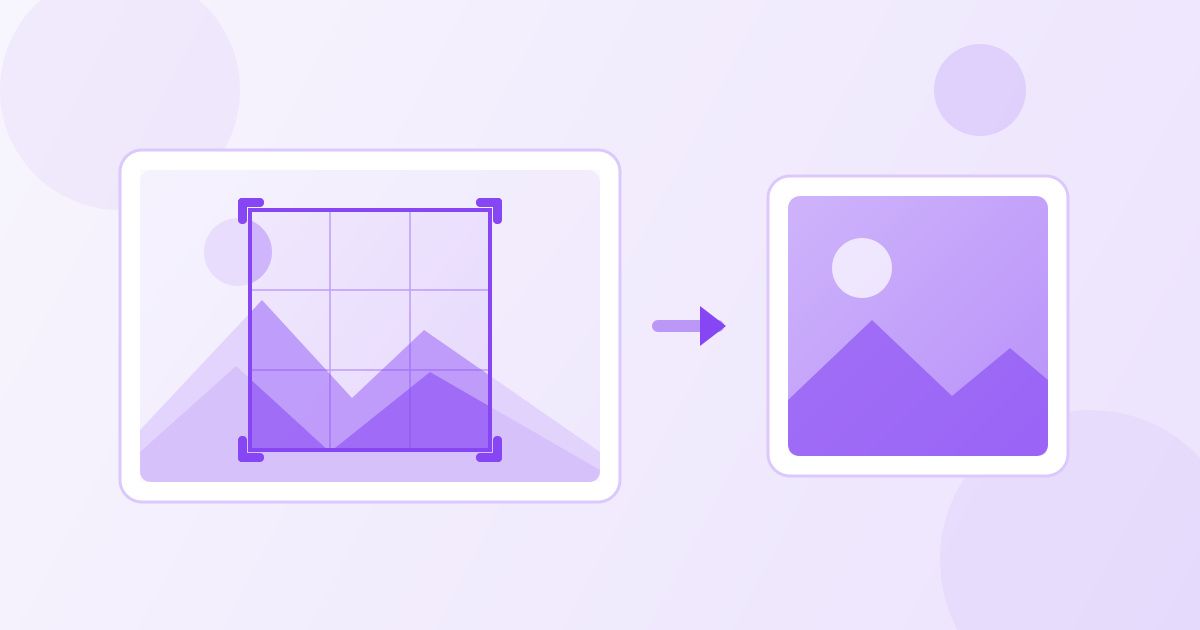
To crop an image to a square, open it in a cropper, lock the shape to a 1:1 ratio, drag the box over the part of the picture you want to keep, and export. Cropping cuts pixels away rather than squashing them, so a square crop never stretches faces or distorts a logo — the only thing you lose is whatever fell outside the box.
Square crops are everywhere: profile photos, album art, product thumbnails in a shop grid, app icons, and any feed that shows previews in neat tiles. The problem is that cameras do not shoot square. A phone photo is usually 4:3 or 3:4, and a DSLR file is 3:2, so something always has to go. This guide covers how to choose what goes, how to do the crop for free, and how to avoid the two mistakes that make a square photo look worse than the original.
Crop to a square in four steps
- Open the Image Cropper and add your JPG, PNG or WebP file.
- Pick the 1:1 preset so the crop box stays a perfect square while you move it.
- Drag the box over the part of the picture you want to keep, and use the corner handles to decide how much of the frame it covers.
- Crop and download. The cropper runs in your browser, so the picture is not uploaded to a server for this particular tool.
That is the whole job for a profile photo. The result keeps the original pixels inside the box at their original quality — a crop does not re-draw anything, it just throws away the edges.
Crop, resize and compress do different things
These three get mixed up constantly, and picking the wrong one is the usual reason a square image ends up blurry or stretched.
| Action | What changes | Use it when |
|---|---|---|
| Crop | The shape and framing. Pixels outside the box are discarded. | A 4:3 photo needs to become a square, or you want the subject bigger in frame. |
| Resize | The pixel dimensions. The whole picture is rescaled. | A site asks for an exact size, like 800×800. |
| Compress | The file size in KB or MB. Dimensions stay the same. | An upload form rejects the file for being too heavy. |
A square usually needs two of them in order: crop first to get the shape right, then resize to the exact pixel count a platform asks for using the Image Resizer. Doing it the other way round means you resize pixels you are about to throw away.
Deciding what to cut
The hard part of a square crop is not the tool, it is the composition. A few rules that hold up well:
- For a face, crop to the head and shoulders. Profile photos are displayed small — often 40 to 100 pixels wide in a comment thread — so a full-body shot turns into an unrecognisable speck. Fill most of the square with the head.
- Leave a little space above the head. Many platforms mask a square avatar into a circle, which quietly eats the corners. Anything important parked in a corner will vanish.
- For a product, keep even margins. Shop grids look messy when one photo is tightly cropped and the next has a wide border. Pick a margin and apply the same crop to every item.
- Watch the horizon. Cropping a landscape to a square often puts the horizon dead centre, which looks static. Slide the box up or down so the horizon sits roughly a third of the way in.
When the square comes out blurry
A crop cannot add detail. If you cut a small square out of an already small photo, the result has fewer pixels than you started with, and enlarging it afterwards is what creates the soft, mushy look — not the crop itself.
Check the number of pixels you are left with. If the crop leaves you with 300×300 and the platform wants 800×800, upscaling will look soft no matter what tool you use. Better options, in order: go back to the original full-resolution file rather than a copy that was already shrunk for a chat app, crop less aggressively, or re-shoot closer to the subject. Photos that arrived through a messaging app are often the culprit, because they were compressed on the way in.
Sizing the square after the crop
Once the shape is right, the pixel dimensions are a separate decision. A safe habit is to keep the square generously large — 1000×1000 or more — and let the platform scale it down, because downscaling looks clean while upscaling does not.
If a form insists on an exact size, set both width and height to the same number in the resizer. Because the image is already 1:1, matching width and height will not distort anything. If the file is then too heavy for an upload limit, run it through the Image Compressor instead of shrinking the dimensions further — that keeps the picture sharp while bringing the kilobytes down.
Squares with a transparent background
Logos, stickers and cut-out product shots usually want a square canvas with no background colour. Remove the background first with the Background Remover, which uses AI to cut the subject out and gives you a transparent PNG, then crop that PNG to a square. Doing it in that order means you can see exactly how much empty space sits around the subject before you commit to the crop.
Keep the file as PNG at this point. Saving a transparent image as JPG fills the transparency with white, and you will only notice once it is sitting on a dark page.
Square icons for apps
App icons are a special case of the square crop, because the stores want the same artwork at many different pixel sizes. Crop your artwork to 1:1 first, then feed that square into the App Icon Generator, which produces every iOS and Android size from one image and lets you set a background colour and padding.
Design the square with the corners in mind: both platforms round or mask icon corners, so a detail that touches the edge gets clipped on a real device even though it looked fine in the file.
iPhone photos that will not open
If your photo came straight off a recent iPhone it is probably a HEIC file, and plenty of upload forms and older desktop apps refuse to touch it. Convert it with the HEIC to JPG Converter first, then crop the JPG. Everything on the site is free, needs no sign-up and adds no watermark, so there is no cost to stacking two or three tools in a row like this.
Keep the original file
A crop is destructive: the pixels outside the box are gone from the exported file, and no tool can bring them back. Save the square as a new file rather than overwriting the photo you started with, and give it a name you will recognise later, like portrait-square.jpg.
This matters more than it sounds. Platforms change their preferred crops, a client asks for the logo with more breathing room, or you decide the first crop was too tight. With the original still on disk you re-crop in twenty seconds. Without it, you are stuck upscaling a small square and hoping nobody looks closely. The same applies when you are cropping several photos for one grid: work from the originals each time rather than cropping an already-cropped file, because each round of export and re-save on a JPG throws away a little more detail.
A quick order of operations
- Convert the file if its format is awkward (HEIC to JPG).
- Remove the background if you need transparency.
- Crop to 1:1 and frame the subject.
- Resize to the exact dimensions the platform asks for.
- Compress only if the file is still too heavy.
Follow that order and you will not accidentally resize pixels you are about to discard, or compress an image twice. Uploaded files are used only to produce your result and old files are cleared from the server automatically every day.
Frequently Asked Questions
Does cropping an image to a square reduce its quality?
No. A crop removes the pixels outside the box and leaves the ones inside untouched, so the part you keep is exactly as sharp as it was. Quality only drops if you enlarge the crop afterwards to fill a bigger space.
What size should a square profile picture be?
Aim for at least 800x800 pixels unless a platform asks for something specific. That is large enough for a high-resolution display and small enough to upload comfortably, and platforms scale it down cleanly.
How do I crop a photo to a square without cutting off heads?
Frame the square around the head and shoulders rather than the whole body, and leave a margin above the head. Many sites mask square avatars into circles, so anything near a corner gets cut even though the file itself is square.
Can I crop an image to a square on my phone?
Yes. The Image Cropper works in a mobile browser, so you can open a photo, drag the 1:1 box with your finger and download the result without installing an app.
What is the difference between cropping and resizing an image?
Cropping changes the framing by discarding the edges of the picture. Resizing keeps the whole picture and changes its pixel dimensions. To make a square of an exact size, crop first, then resize.
Why does my square image look stretched after uploading?
That usually means the image was not truly 1:1 and the platform squashed it into a square frame. Crop to a real 1:1 ratio first, then check that the width and height numbers in the file are identical.



