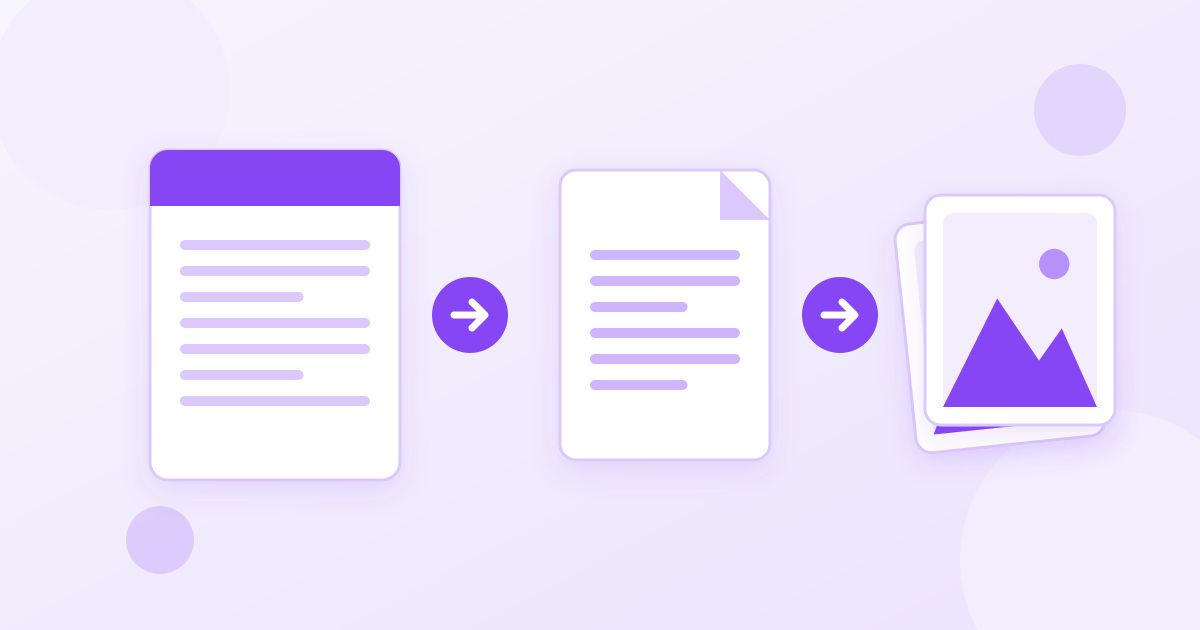
Word has no "Save as JPG" option, so the reliable way to turn a Word document into JPG images is a two-step route: convert the DOCX to PDF, then render each PDF page as a JPG. It takes about a minute, keeps your fonts and layout exactly as they look in Word, and gives you one clean image per page instead of a cropped screenshot.
This guide walks through that route with free online tools, explains when a quick screenshot is good enough instead, and covers the details people trip over: image sharpness, file size limits on forms, and turning just one page into a picture.
Why you can't save a Word file as JPG directly
A Word document is a flowing text file. Page breaks, fonts and line wrapping are calculated when the file is opened, which is why the same DOCX can look slightly different on two computers. A JPG is the opposite: a fixed grid of pixels. To get from one to the other, something has to "print" the document onto a fixed page first, and that is exactly what a PDF is.
So every reliable Word to JPG method, including the paid ones, goes through a fixed-layout step. Doing it yourself in two steps means you can check the PDF before you make the images, and you know nothing was quietly reflowed.
Method 1: Word to PDF to JPG (best for whole documents)
- Convert the document to PDF. Upload your DOC or DOCX to the Word to PDF converter. It keeps the formatting, so headings, tables and images stay where you put them. Download the PDF and open it once to make sure the page breaks look right.
- Turn the PDF pages into JPGs. Upload that PDF to the PDF to JPG converter. Each page is rendered as its own JPG image. A one-page document gives you a single JPG; a multi-page document comes back as a ZIP with one image per page.
- Unzip and rename. On Windows, right-click the ZIP and choose Extract All. On a Mac, double-click it. Rename the files if the order matters to whoever receives them.
Both tools are free, need no sign-up and add no watermark. Your files are uploaded to Toolyfied's server to be converted, used only to produce the result, and old files are cleaned up from the server automatically every day.
Method 2: A screenshot (fine for a paragraph or a single table)
If you only need a small piece of the document, such as one table for a slide or a paragraph for a chat message, a screenshot is faster:
- Windows: press Windows + Shift + S, drag around the area, then open the capture in Snipping Tool and save it. Snipping Tool saves PNG by default; pick JPG in the Save As dialog if you need it.
- Mac: press Cmd + Shift + 4 and drag. The screenshot lands on your desktop as a PNG. Open it in Preview, choose File > Export and select JPEG.
The catch is resolution. A screenshot captures whatever your screen shows at that moment, so text can look soft when someone zooms in, and a full page usually doesn't fit on screen at a readable size. For anything longer than half a page, Method 1 gives cleaner results.
Which method should you use?
| Situation | Best method | Why |
|---|---|---|
| Whole document, several pages | Word → PDF → JPG | One image per page, layout preserved, no manual cropping |
| A certificate, flyer or one-page CV | Word → PDF → JPG | Full page at a consistent size, ready to upload or print |
| A single table or paragraph | Screenshot | Fastest; quality is fine at normal viewing size |
| One page out of a long document | Word → PDF, split, then JPG | Avoids converting pages you don't need |
| A form that demands a JPG under a size limit | Word → PDF → JPG, then compress | Lets you control the final file size |
Converting only one page of a Word document
If you need, say, page 4 of a 20-page report as an image, convert the whole file to PDF first, then use the PDF Splitter to extract just that page (type the page number, or a range like 4-5). Run the smaller PDF through the PDF to JPG converter and you get exactly the image you want, with no ZIP of 20 files to dig through.
Getting the JPG to the right size
Most people convert Word to JPG because something upstream insists on an image: a job portal that only accepts JPG, a government form, a social post or a school system. Those places often have rules about file size or dimensions.
- File too large? Run the JPG through the Image Compressor. Text-heavy pages usually compress well because most of the page is white.
- Needs exact pixel dimensions? Use the Image Resizer to set a precise width and height, for example 1080 pixels wide for a social post.
- Want to trim the margins? The Image Cropper lets you cut away white space around a certificate or flyer so the content fills the frame.
Do the resizing and compressing on the JPG, not by shrinking the Word document. Changing fonts or margins in Word to "make it smaller" changes the layout and can push content onto another page.
Tips for a clean result
- Use common fonts if you can. If your document uses a font that isn't installed on the converting machine, a substitute font may be used. Standard fonts like Calibri, Arial or Times New Roman avoid that risk. Always glance at the PDF before making images.
- Check page breaks in the PDF. A heading stranded at the bottom of a page will be stranded in the JPG too. Fix it in Word with a page break, then convert again.
- Keep the original DOCX. A JPG is a picture of text. Nobody can edit it, and search engines and screen readers can't read it the way they read a document. Send the image where an image is required, and keep the Word file as your editable master.
- Consider whether a PDF is better. If the recipient just needs to read or print the document, a PDF is usually the better format: text stays sharp at any zoom and multiple pages stay in one file. Use JPG when the destination specifically asks for an image.
Converting Word to JPG on a phone
The same two-step route works in a phone browser. On an iPhone or Android phone, open the Word to PDF converter, pick the DOCX from Files or your downloads, then pass the PDF to the PDF to JPG converter. For a multi-page document you'll receive a ZIP: on iPhone, tap it in the Files app to extract it; on Android, most file managers can open ZIPs directly. Then save the images to your photo gallery from there.
If you only need a quick look at one page, a phone screenshot of the open document works too, with the same resolution caveat as on a computer.
Going the other way
If you have images and need a document instead, for example scanned receipts that need to become one file, the Image to PDF converter turns JPG, PNG or WebP images into a PDF. Converting images back into editable Word text is a different job that needs OCR, and the results depend heavily on image quality.
Frequently Asked Questions
Can Microsoft Word save a document as a JPG?
No. Word can save as PDF, but it has no JPG or JPEG option in Save As. The dependable workaround is to save or convert the document to PDF, then convert the PDF pages to JPG images.
How do I convert a multi-page Word document to JPG?
Convert the DOCX to PDF, then run the PDF through a PDF to JPG converter. Each page becomes its own JPG, and multi-page files are delivered as a ZIP you can extract on any computer or phone.
Will converting Word to JPG change my formatting?
Not if you go through PDF. The Word to PDF step fixes the layout, fonts and images in place, and the JPGs are rendered from that PDF. Check the PDF before converting so you catch any page-break surprises early.
Why does my JPG look blurry?
Blurry results usually come from screenshots, which capture text at screen resolution. Converting through PDF produces a full-page image instead. Also avoid upscaling a small image afterwards, since resizing up cannot add detail.
How do I make the JPG smaller for an online form?
Compress the finished JPG with an image compressor, and if the form specifies dimensions, resize it to the exact width and height first. Text pages usually shrink well because most of the page is plain white.
Is it free to convert Word to JPG with Toolyfied?
Yes. The Word to PDF and PDF to JPG converters are free, need no account and add no watermark. Files are processed on Toolyfied's server only to produce the result and are cleaned up automatically every day.



