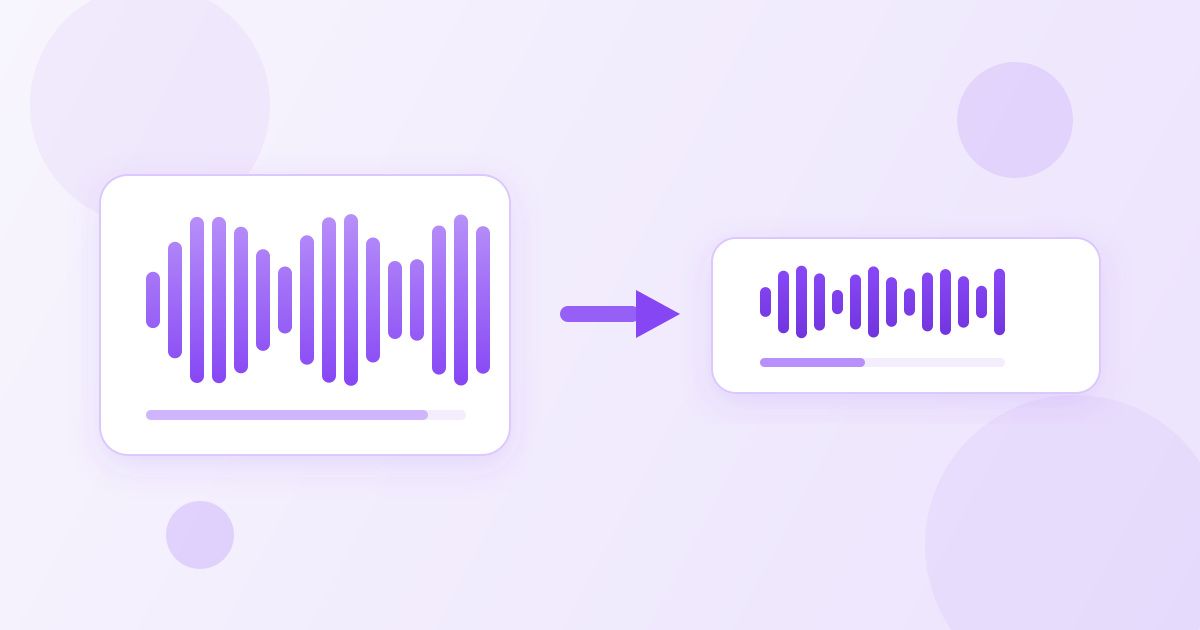
A WAV file is uncompressed audio, so a three-minute recording lands somewhere around 30 MB. The same recording as an MP3 is closer to 3 MB. If you are trying to email a voice memo, upload an interview, or send a track to someone who just needs to listen to it, converting WAV to MP3 is the fix — and you can do it in your browser with the free audio converter, no software and no sign-up.
This guide covers the conversion itself, the arithmetic behind why WAV files are so big, which bitrate to pick, and when you should keep the WAV instead.
Convert WAV to MP3 in four steps
- Open the Audio Converter and drop your .wav file onto the upload area.
- Choose MP3 as the output format.
- Start the conversion and wait — a few seconds for a short clip, longer for a full album side.
- Download the MP3. There is no watermark, no audio stamp and no account to create.
The tool handles the other common jumps too: MP3, WAV, M4A, OGG and FLAC in any direction, so the same page covers "M4A won't play on my Windows machine" and "I need a FLAC as an MP3 for the car stereo".
One honest note on privacy: audio conversion happens on Toolyfied's server, not inside your browser tab. Your file is used to produce the result and old files are cleared off the server automatically every day. If a recording is confidential — a legal interview, a medical dictation — treat it the way you would treat any online upload and use offline software instead.
Why WAV files are so much bigger
WAV is not really a compression format at all. It stores raw PCM samples: every measurement of the waveform, written to disk at full resolution. Its size is fixed by arithmetic, not by how the music sounds.
At CD quality — 44,100 samples per second, 16 bits per sample, two channels — that works out to about 1,411 kilobits per second, or roughly 10 MB per minute. A one-hour recording is around 600 MB. Nothing about the content changes that: silence takes exactly as many bytes as a drum solo.
MP3 uses perceptual coding instead. It throws away detail your ear is unlikely to notice — frequencies masked by louder sounds sitting next to them — and stores what is left far more compactly. At 192 kbps you are at roughly one-seventh the size of the WAV. At 128 kbps, closer to one-eleventh.
Which bitrate should you choose?
Bitrate is the size-versus-quality dial. Higher numbers keep more detail and produce bigger files. These are the settings people actually reach for:
| Bitrate | Roughly per minute | Good for |
|---|---|---|
| 96 kbps | ~0.7 MB | Speech only — voice memos, lectures, dictation |
| 128 kbps | ~1 MB | Podcasts, interviews, background listening |
| 192 kbps | ~1.4 MB | The sensible default for music |
| 320 kbps | ~2.4 MB | Music you will listen to on good headphones |
| WAV (1,411 kbps) | ~10 MB | Editing masters, archiving, further processing |
For spoken word, anything above 128 kbps is largely wasted — a human voice occupies a narrow slice of the spectrum. For music, 192 kbps is the point where most listeners on most equipment stop hearing a difference in ordinary conditions.
When to keep the WAV
MP3 is lossy, and the discarded detail does not come back. Converting an MP3 back to WAV gives you a large file that still sounds like the MP3 — the size returns, the quality does not. So keep the original WAV when:
- You are still editing. Every re-encode of a lossy file costs a little more quality. Edit in WAV, export to MP3 once at the end.
- You are sending audio to a studio, mastering engineer or video editor. They will ask for the uncompressed file.
- It is an archive copy. A recording you cannot recapture — an interview, a live set, a family tape — deserves the lossless original on a backup drive.
- You need FLAC-grade fidelity at half the size. FLAC compresses losslessly, typically to 50-60% of the WAV, with the exact samples recoverable. The converter handles WAV to FLAC as well.
Common reasons people convert
The file is too big to email
Most mail providers cap attachments around 20-25 MB. A five-minute WAV blows straight through that; the same audio at 192 kbps lands near 7 MB and sends without a fuss.
The player won't open it
WAV is widely supported, but not universally — some car head units, older phones and web upload forms accept MP3 and little else. MP3 is the closest thing audio has to a universal format.
You only need part of the recording
If the useful audio is 40 seconds inside a 20-minute file, converting the whole thing is the wrong first move. Trim it first with the MP3 cutter, which cuts by exact start and end seconds, then convert the short clip. Smaller input, faster result, less to upload.
The audio is trapped in a video
When what you actually have is an MP4 and you only want the sound, you do not need an audio converter at all — the MP4 to MP3 converter pulls the audio track straight out of the video.
Sample rate, bit depth and mono
Bitrate is the main lever, but two other properties matter for large files:
- Sample rate. 44.1 kHz is CD standard and fine for everything. Recordings made at 96 kHz for production carry twice the data with no benefit for listening.
- Channels. A stereo file stores two channels. An interview recorded from one microphone has the same audio on both — converting it to mono halves the data for no perceptible loss. Music should stay stereo.
If your goal is simply "make this smaller", start with the bitrate and only then think about mono. And if the recording is a voice on one mic, mono at 96 kbps is a dramatic saving over a stereo WAV.
A quick decision guide
| What you want to do | Best format |
|---|---|
| Email or message a recording | MP3, 128-192 kbps |
| Upload to a podcast host | MP3, 128 kbps mono for speech |
| Hand off to an editor | WAV (or FLAC) |
| Keep a permanent archive | FLAC — lossless, about half the WAV size |
| Play on an old car stereo or cheap player | MP3 |
| Use in an app that rejects WAV | MP3 or M4A |
The rule of thumb is simple: lossless while you work, lossy when you share. Keep the WAV somewhere safe, send the MP3, and you never have to redo a conversion.
What about M4A, OGG and the other formats?
MP3 is the safe default, but it is not always the best answer. Here is what the other options in the converter are actually for:
- M4A (AAC). The format iPhones and modern Apple software produce. At the same bitrate it generally sounds a little better than MP3, and it is well supported on phones and computers made in the last decade. Convert M4A to MP3 when an older device or an upload form refuses to accept it.
- OGG (Vorbis). An open, royalty-free format used heavily in games and on some websites. Efficient, but unsupported by a lot of consumer hardware, so it is a poor choice for a file you are sending to someone else.
- FLAC. Lossless compression — every original sample can be reconstructed exactly. The right home for archives and for anything you might edit again later.
- WAV. No compression, maximum compatibility with editing software, largest files.
If you are converting a batch of recordings for one purpose, decide the destination first and convert once. Round-tripping between lossy formats — MP3 to M4A to MP3 — costs a little quality each time, and there is rarely a reason to do it.
Naming and organising the output
A converted file usually arrives with the original name and a new extension, which is fine until you have a folder holding both versions of forty recordings. A habit worth adopting: keep the WAV masters in one folder and export the MP3s into a separate one, rather than letting the two formats sit side by side. When you later need to re-export at a different bitrate, you will know exactly which file is the original.
For long recordings that get chopped into pieces — a two-hour interview split into segments — name each piece with the timestamp it starts at before you convert. It costs ten seconds now and saves a lot of scrubbing later.
Before you convert, check the source
If your WAV was itself made from an MP3 — someone exported a compressed file to WAV to "improve" it — converting back to MP3 will not degrade it much further, but the file was never as good as its size suggested. Quality is set at the first encode. When you have a choice of sources, always start from the most original file you can find, then convert once with the audio converter to whatever the destination needs.
Frequently Asked Questions
Does converting WAV to MP3 reduce the audio quality?
Yes, slightly — MP3 is a lossy format, so some detail is discarded to make the file smaller. At 192 kbps or higher most people cannot hear the difference on ordinary speakers or headphones. For speech, even 128 kbps sounds essentially identical to the original.
How much smaller will my file be?
Roughly seven times smaller at 192 kbps and about eleven times smaller at 128 kbps. A 10 MB per minute WAV becomes around 1.4 MB per minute at 192 kbps. The exact figure depends on the bitrate you pick, not on the content of the recording.
Can I convert an MP3 back to WAV to restore the quality?
No. The conversion will produce a valid WAV file that is large again, but the detail removed during MP3 encoding is gone permanently. The WAV will sound exactly like the MP3 it came from, just at ten times the size.
Is the Toolyfied audio converter really free?
Yes. It is free to use, needs no account and adds no watermark or audio stamp to the output. It converts between MP3, WAV, M4A, OGG and FLAC in any direction.
Do my audio files stay on my device?
No — audio conversion runs on Toolyfied's server, so the file is uploaded to be processed. It is used only to produce your converted file, and old files are removed from the server automatically every day. For confidential recordings, use offline software instead.
Should I use FLAC instead of MP3?
Use FLAC when you want to keep every bit of the original but need it smaller — it is lossless and typically lands at half to two-thirds of the WAV size. Use MP3 when the file has to be small, or has to open on the widest possible range of devices.



