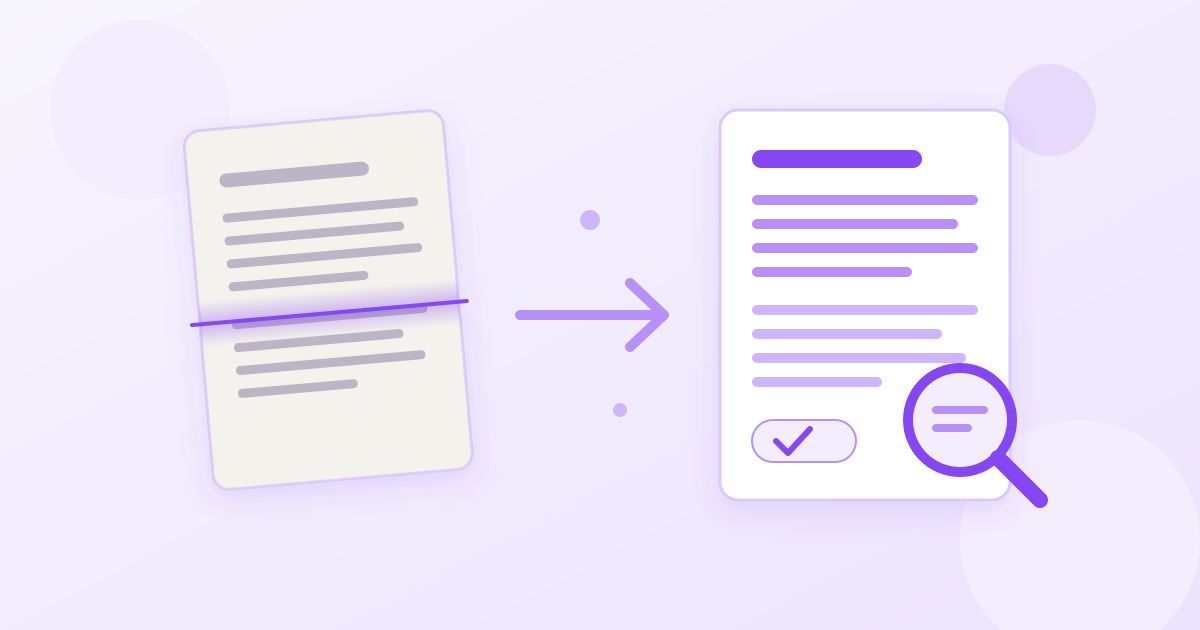
To convert a scanned PDF to text, you need OCR (optical character recognition), because a scanned page is a photograph of text, not text itself. Upload the PDF to a free OCR tool such as Toolyfied's Image to Text (OCR), let it read the pages, then copy the result or download it as a .txt file. The whole job takes a minute or two for a short document.
That is the short answer. The rest of this guide covers how to tell whether your PDF is actually scanned, how to prepare pages so the OCR reads them cleanly, what to do with long documents, and the honest limits of the process, including the fact that Toolyfied's OCR reads English text only.
Is your PDF scanned, or does it already contain text?
Before you run anything, check what kind of PDF you have. There are two very different types that look identical on screen:
- Digital (text-based) PDFs are exported from Word, Google Docs, a web page or accounting software. The letters are stored as real characters.
- Scanned (image-based) PDFs come from a scanner, a phone scanning app or a fax. Each page is a picture, and the PDF is just a container for those pictures.
The quickest test: open the file and try to select a single word with your cursor. If the word highlights and you can copy and paste it, the PDF already has text and you do not need OCR. If dragging your cursor draws a blue box over the whole page, or nothing highlights at all, it is a scan.
Two other clues: searching for a word you can plainly see (Ctrl+F or Cmd+F) finds nothing, and zooming in makes the letters go soft and pixelated instead of staying sharp.
How to convert a scanned PDF to text, step by step
- Open the OCR tool. Go to Toolyfied's Image to Text tool. It accepts images and scanned PDFs, with no sign-up.
- Upload your PDF. Drag the file in or pick it from your computer or phone.
- Let it recognise the text. The tool reads each page and turns the shapes of the letters into characters. Longer documents take longer.
- Check the output. Skim the result for obvious misreads, especially numbers, names and anything in a table.
- Copy or download. Copy the text straight into your document or email, or download it as a .txt file to keep.
The file is uploaded to Toolyfied's server to be processed. It is used only to produce your result, and old files are cleaned up from the server automatically every day. If a document is highly confidential, bear that in mind before uploading it to any online tool.
Prepare the pages first for better accuracy
OCR accuracy depends far more on the input than on the tool. A few minutes of preparation often makes the difference between clean text and a page of gibberish.
Fix sideways and upside-down pages
Scanners and phone apps often save a page on its side, especially landscape tables. Text that is rotated 90 degrees is much harder to recognise. If your whole document is turned the wrong way, straighten it with Rotate PDF before you run OCR. That tool rotates all pages by the same amount, so if only one page is sideways, split it out first.
Only send the pages you need
If you need the text from pages 4 to 7 of a 60-page scan, there is no reason to process all 60. Pull out just the range you want with the PDF Splitter (for example "4-7"), then run OCR on that smaller file. It is faster and you have less output to check.
Start from the best scan you can get
- Scan at a readable resolution. Many scanning apps offer a "text" or "document" mode that increases contrast, which helps OCR.
- Keep the page flat and evenly lit. Curled edges near a book spine and shadows from your hand are common causes of errors.
- Avoid heavy compression. A scan squashed to a tiny file size can blur small print.
What OCR handles well, and what it struggles with
Being realistic about the output saves time. Here is what to expect from typical documents:
| Document type | What to expect | Tip |
|---|---|---|
| Typed letters, reports, contracts | Usually good results on a clean scan | Spot-check names, dates and figures |
| Printed books and articles | Good, but columns and footnotes may run together | Split multi-column pages or tidy the order afterwards |
| Receipts and invoices | Mixed: faded thermal paper and tiny print cause misreads | Check every number before you rely on it |
| Tables and forms | Text comes out, but the grid layout does not | Expect to rebuild the table yourself |
| Handwriting | Unreliable | Type it out, or treat the output as a rough draft |
| Non-English text | Not supported by Toolyfied's OCR | Use a tool that supports that language |
The output is plain text. Bold, headings, fonts and page layout are not kept. That is usually what you want when you are pasting a paragraph into an email or quoting a clause, but it matters if you were hoping to recreate the document exactly.
Scanned PDF to text vs scanned PDF to Word
People often reach for a PDF to Word converter first. Toolyfied's PDF to Word converter is excellent for digital PDFs: it turns them into editable DOCX files and keeps the layout, fonts and images. But a scanned page has no characters inside it, only a picture. Converting that to Word typically gives you a document with the page image in it, which is no more editable than the PDF was.
So a sensible rule is:
- Digital PDF, want to edit it with layout intact: use PDF to Word.
- Scanned PDF, want the words: use OCR to get the text, then paste it into Word or Google Docs and format it there.
Working with long scanned documents
A 200-page scanned report is a different job from a two-page letter. A few habits make it manageable:
- Work in chunks. Split the PDF into sections (chapters, or 10 to 20 pages at a time) and run OCR on each. If one chunk has a problem, you only redo that part.
- Name your outputs clearly. Save each .txt file with the page range in the name so you can reassemble them in order.
- Check a sample early. Run the first chunk and read it before doing the rest. If accuracy is poor, fix the scan quality now rather than after processing everything.
- Measure what you got. Paste the result into the Word Counter to see the word and paragraph count. It is a quick way to notice if a page came out almost empty.
Photos of documents: convert first if needed
Sometimes you do not have a PDF at all, just phone photos of pages. You can run those images through the same OCR tool directly. If you received a scanned PDF but only need one page as a picture, for example to share in a chat, PDF to JPG will render the pages as images.
Common mistakes to avoid
- Trusting numbers blindly. OCR can confuse similar shapes, such as 0 and O, 1 and l, or 5 and S. For invoices, bank statements or anything with figures, compare the output against the original.
- Expecting the layout to survive. Columns, tables and headers come out as plain lines of text.
- Running OCR on a text PDF. If you can already select the text, just copy it. OCR adds nothing and can only introduce errors.
- Uploading the wrong language. Toolyfied's OCR is built for English text. French, Spanish or Arabic documents will not be read correctly.
The bottom line
A scanned PDF is a stack of pictures, so the only way to get the words out is OCR. Check whether your file is really a scan, straighten and trim it if needed, run it through Image to Text, and give the result a careful read before you use it. For clean, typed English documents, that gets you usable text in minutes without installing anything.
Frequently Asked Questions
How do I know if my PDF is scanned?
Try to select a single word with your cursor. If it highlights and you can copy it, the PDF already contains text. If a box covers the whole page or nothing highlights, it is a scanned image and you need OCR.
Can I convert a scanned PDF to text for free?
Yes. Toolyfied's Image to Text tool accepts scanned PDFs and images, extracts the English text, and lets you copy it or download a .txt file. It is free, needs no sign-up and adds no watermark.
Why doesn't PDF to Word work on my scanned PDF?
A scanned page contains a picture of text rather than real characters. Converting it to Word typically gives you the page image inside a document, which is no easier to edit. Run OCR first to get the words, then paste them into Word.
Does OCR keep the formatting of my document?
No. OCR output is plain text, so fonts, bold, headings, columns and table grids are not kept. You will need to reformat the text in your word processor if layout matters.
Can Toolyfied's OCR read other languages or handwriting?
Toolyfied's OCR is built for English printed text. Other languages will not be read correctly, and handwriting gives unreliable results, so treat any handwritten output as a rough draft at best.
How can I improve OCR accuracy on a bad scan?
Start from the flattest, best-lit, least-compressed scan you can get, rotate sideways pages upright, and split out only the pages you need. Always double-check numbers, names and dates against the original.



